Milo calculates the VAT on your invoices and quotes automatically. You choose a VAT code per line. Milo already proposes one and works out the amounts, so you don't need any accounting knowledge.
A VAT code per line
Every invoice line has a VAT code field. With it you choose which VAT applies to that line. The list shows the percentage first and then the name, with the highest rate at the top:
- 21% - Standard rate
- 9% - Reduced rate
- 0% - VAT exempt
- 0% - VAT reverse charged
- 0% - Services within the EU
- 0% - Supplies within the EU
- 0% - Services outside the EU
- 0% - Export of goods outside the EU
- Margin scheme
- Travel agency scheme
The margin scheme and the travel agency scheme show no percentage before the name. They tax the margin rather than the whole turnover, so a leading 0% would mislead.
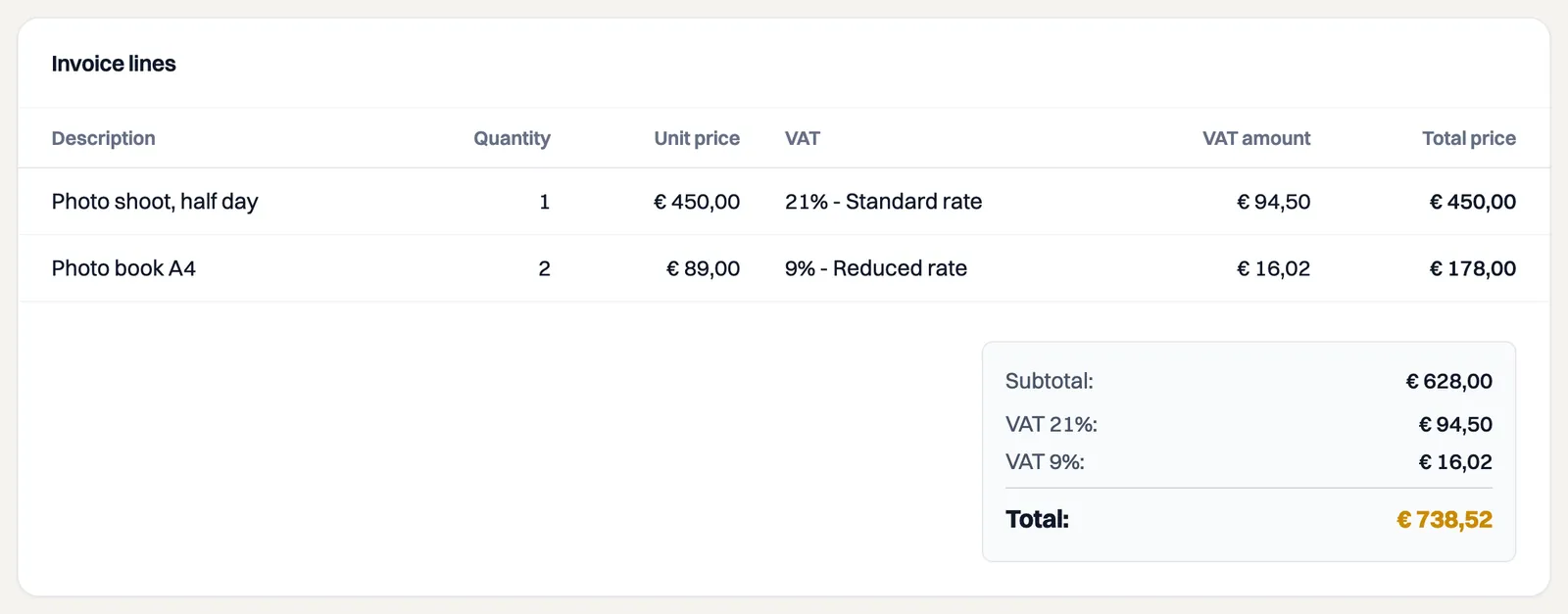
Milo calculates the VAT amount and the total price per line. You can use several VAT rates and codes side by side on one invoice, for example a line at 21% and a line at 9%. Quotes and recurring invoices work the same way.
Milo proposes a code
As soon as you choose a customer, Milo proposes a VAT code for the lines:
- a private individual or a customer in the Netherlands: 21% - Standard rate;
- a business in another EU country with a VAT number: 0% - Services within the EU;
- a business outside the EU: 0% - Services outside the EU.
If a business in another EU country has no VAT number on file, Milo proposes 21%. Within the EU, Milo always proposes the code for services. You choose the code for supplies yourself.
If you sell goods rather than services, watch the code: outside the EU you choose 0% - Export of goods outside the EU yourself, and within the EU 0% - Supplies within the EU.
It remains a proposal. Lines whose code you changed yourself keep that code. And you can always choose a different code per line.
The totals below your invoice
Below the lines you see the Subtotal, the VAT and the Total. Milo keeps the VAT neatly separated there:
- a rate above 0% is shown with its percentage, for example VAT 21% and VAT 9%;
- a line at 0% is shown with the name of its code, for example VAT reverse charged or VAT exempt;
- two codes of the same kind share one row. If you use both services and supplies within the EU, you see a single row Intra-Community.
The PDF is organised the same way. If a code comes with its own invoice text, as with services within the EU or the margin scheme, Milo puts it below the totals.
Small business scheme (KOR)
If you apply the Dutch small business scheme (KOR), you send your customers invoices without VAT. You set that under Settings > General, on the VAT tab. There you find the card Small business scheme (KOR) with the switch Yes, I apply the small business scheme.
When you turn the switch on, Milo offers only the code 0% - Small business scheme (KOR) and puts the statutory exemption text on your invoices. If you have several companies in Milo, you set this per company.
Existing drafts, recurring invoices, catalog items and projects keep the VAT code they already had. You change those yourself. Only turn the switch on if you are registered for the KOR with the Dutch Tax Administration.
VAT code in the catalog and on projects
Catalog items and projects each have a VAT code field. When you add a catalog item to an invoice or quote, the line takes over the item's code. When you invoice hours, the lines get the project's code.
If no code has been recorded, the field shows No default code. You see that on catalog items you imported, for example, and on a project you can choose it yourself. A line with such a catalog item keeps the code it already had. With hours from such a project, you choose the VAT code yourself on the draft invoice.
Your customer's VAT number on the document
For reverse-charged VAT and for supplies and services within the EU, your customer's VAT number has to appear on the invoice. Fill that number in on the customer, and Milo prints it under your customer's address on the PDF, labelled VAT ID. That applies to invoices, quotes and credit notes alike.
If there is no number on the customer, nothing appears on the document. So check it before you send an invoice carrying one of those codes. Where to fill it in is covered in the article on managing customers and customer groups.
VAT on the e-invoice
In the UBL file, Milo also carries the VAT over per group, along with the reason why no VAT was charged where that is needed.
When a code disappears from the list
VAT codes can be replaced, for instance when a scheme changes. A code that can no longer be chosen drops out of the list for new lines, but stays on documents that already use it. That way the VAT on an invoice you sent never changes after the fact. Open such a document and the old code is still there, and you can leave it.
You remain responsible
Milo does the sums and makes a proposal, but does not give tax advice. You remain responsible for a correct invoice yourself. So check the VAT code before you send an invoice. If you are unsure which code fits your situation, ask your accountant or check the website of the Dutch Tax Administration.
Still stuck? Ask Milo via the chat in the bottom right, or email [email protected].