With recurring invoices you let Milo create and send invoices automatically on a fixed rhythm, for example every month. You set it up once and Milo creates the invoice on the scheduled date and sends it to the customer. You find them under Invoices > Recurring invoices. Recurring invoices are part of the Professional plan.
Creating a recurring invoice
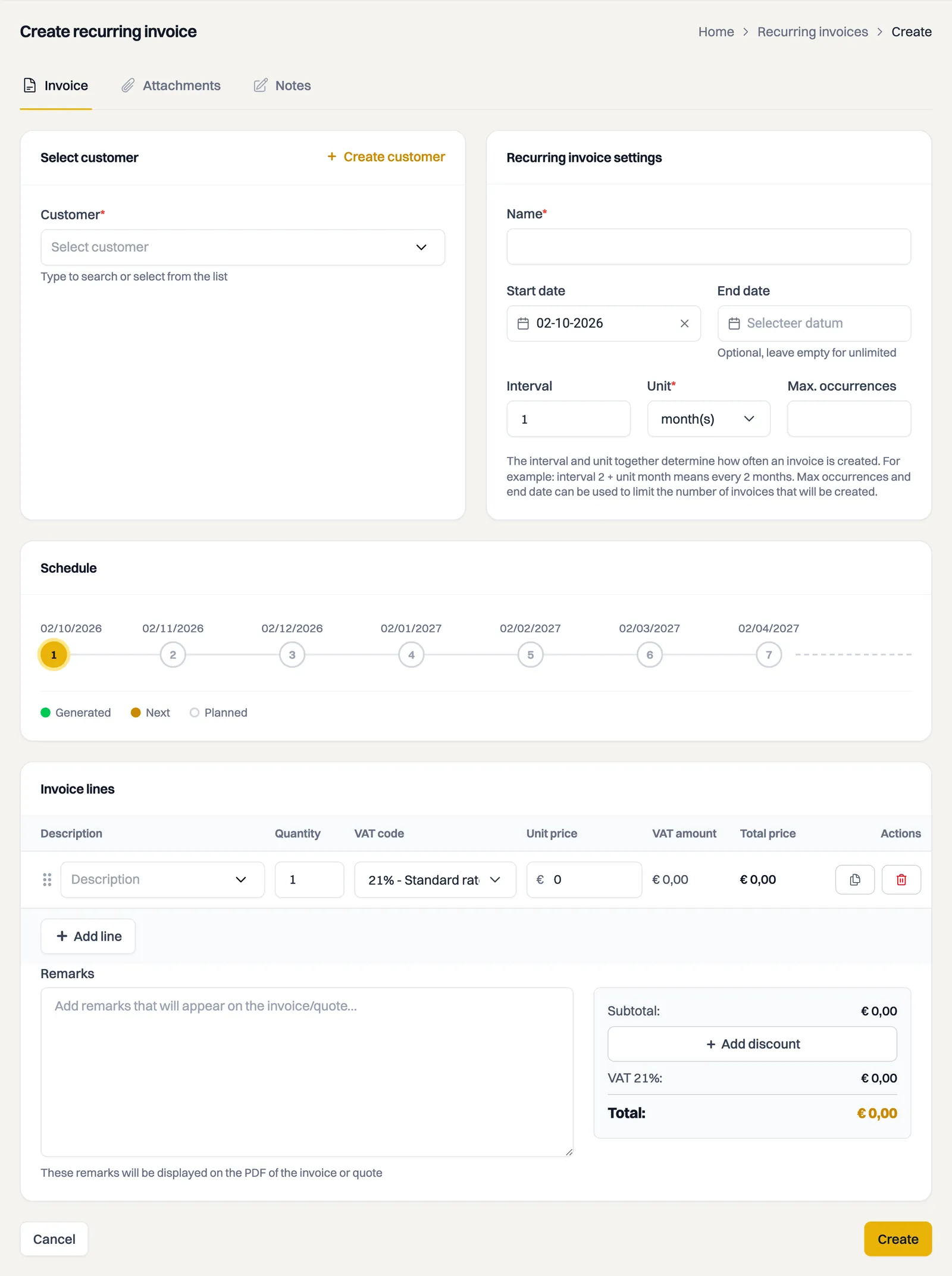
- Go to Invoices > Recurring invoices and click Create recurring invoice.
- Choose the Customer.
- Give the recurring invoice a Name you will recognise it by, for example "Monthly maintenance".
- Set the Start date. The End date is optional; if you leave it empty, the series runs indefinitely.
- Use Interval and Unit to decide how often Milo invoices. Interval 1 with unit month means every month, interval 2 with unit month means every two months. The units are day, week, month and year.
- Optionally enter Max. number of times to limit the number of invoices.
- Add Invoice lines, just like on a regular invoice.
- Click Create.
The schedule
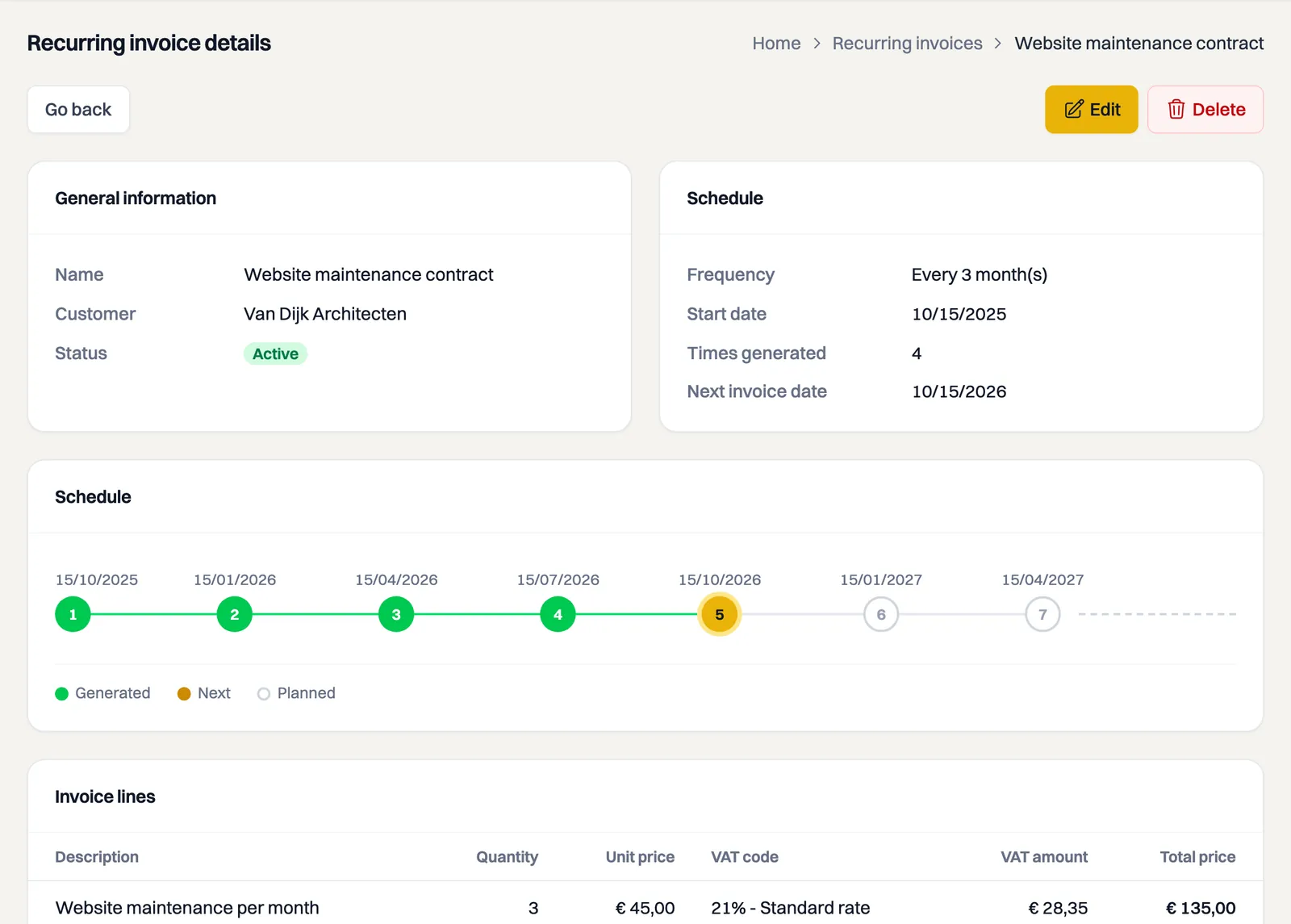
Milo shows a timeline with the scheduled invoice dates. On it you see which invoice has already been Created, which is Next and which are still Scheduled. That way you know exactly when the next invoice goes out.
Every invoice carries the scheduled date of its own period as the invoice date, not the day Milo happens to create it. If a series falls behind, Milo catches it up one period at a time and each invoice keeps its own date. That matters for your VAT: the period follows the invoice date.
A start date in the past
If you choose a start date that has already passed, Milo invoices the period that is under way right away. That invoice carries the date of that period, and the series then continues in the rhythm of your start date. So if you set up a monthly series on 4 November that starts on 15 October, you get an invoice for the period from 15 October and the next one falls on 15 November, not on 4 December.
Two things to know:
- Milo does not catch up older periods. Only the period currently under way is invoiced, not every period since your start date.
- The payment term runs from today, not from the invoice date. Otherwise the invoice would reach your customer already overdue.
If your end date is in the past, it caps the period that is still invoiced.
Overview and details
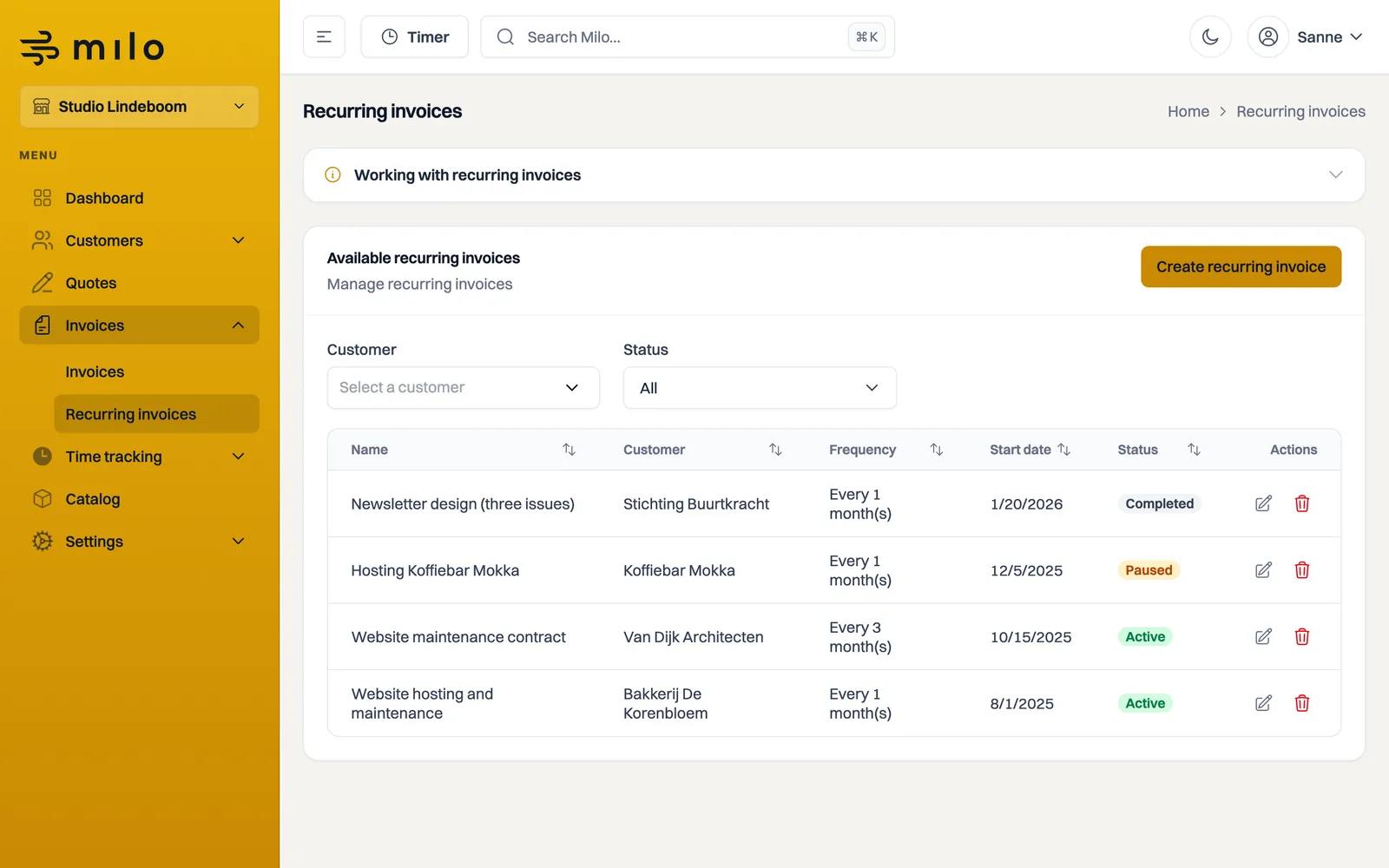
In the overview you see your recurring invoices with their status. Open one to view the details: the name, the customer, the status, the frequency, the start date, the number of invoices already created and the next invoice date.
Pausing, resuming and editing
You can pause a recurring invoice at any time and resume it later. With Edit you change the details or lines, and with Delete you stop the series entirely.
Starting today and sending
If you choose today as the start date and click Create, Milo generates the first invoice immediately. This also applies to a start date in the past; see above for exactly what is invoiced then. The invoice is automatically queued for sending, without a separate manual send step. Automatic sending does not mean the email is always delivered immediately: delivery is processed in the background and can take a moment. Generated invoices do not each require a manual verification step. If scheduled generation fails three consecutive times, the series receives the Error status. Check the series and contact support if the cause is unclear. Use Pause and Resume on the detail page to pause or resume the schedule.
Still stuck? Ask Milo via the chat in the bottom right, or email [email protected].