Under Settings > Branding you decide how the PDF of your invoices and quotes looks. You choose the position and size of your logo, the font and an accent colour, and a preview shows the result right away.
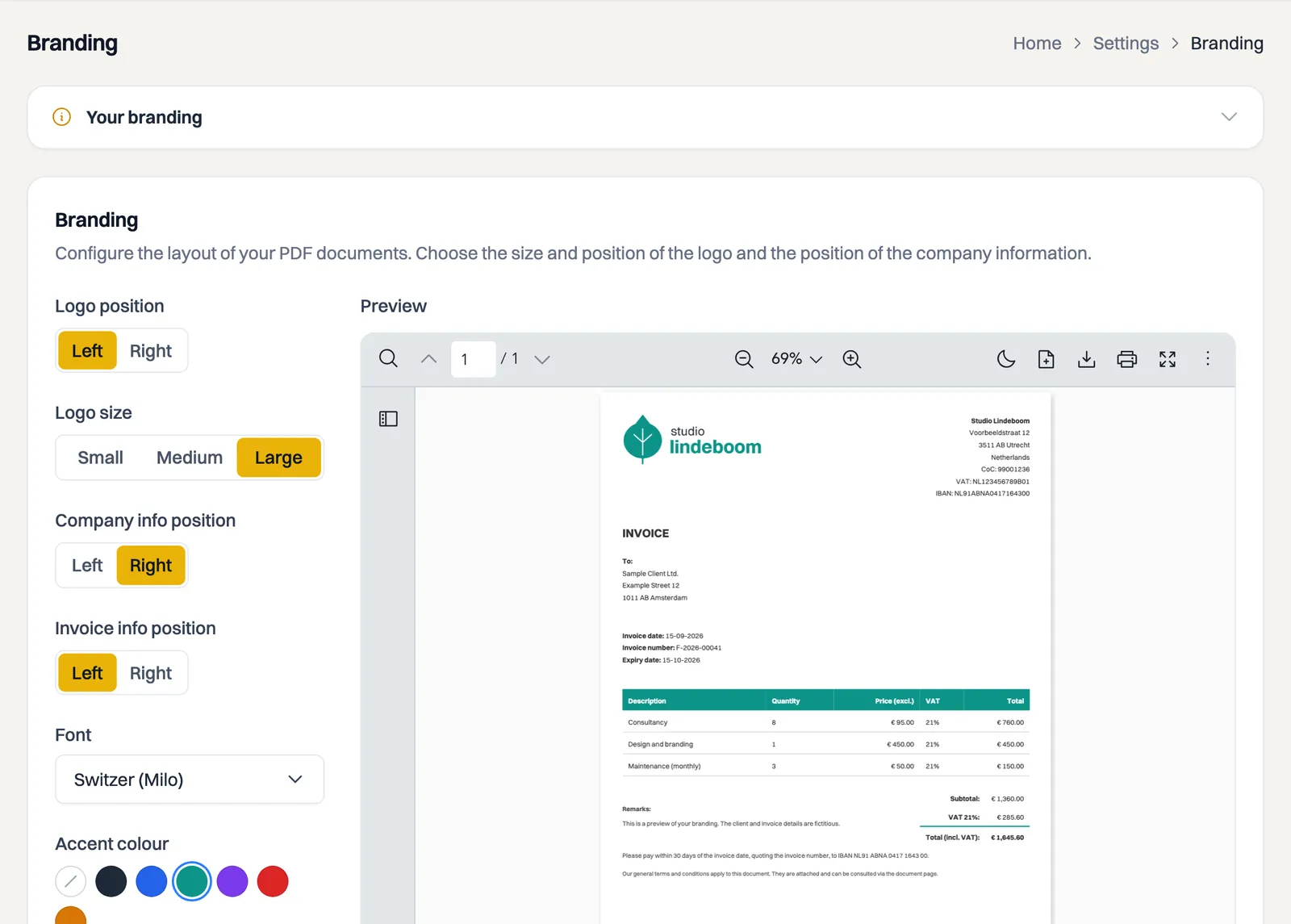
Setting the layout
You set three positions, each Left or Right:
- Logo position: where your logo sits at the top of the document.
- Company info position: where your own company's details sit.
- Invoice info position: where the invoice number and the dates sit.
Logo, font and colour
Besides the positions you set:
- Logo size: Small, Medium or Large.
- Font: DejaVu Sans, Switzer (Milo), Helvetica or Times New Roman.
- Accent colour: a colour for the accents in your document, or None.
Click save to store your choices. You then see the message Branding saved.
The preview
Next to the settings, Milo shows a Preview: a real PDF that is rebuilt whenever you change something. While it is being generated you see Generating preview…. That way you see the result before you send a document.
Your logo
You add the logo itself at Settings > Company Details. On the Branding page you then decide where that logo appears on the document and how large it is.
In the email to your customer too
Your house style does not stop at the PDF. The email Milo uses to send an invoice or quote to your customer carries your logo at the top (or your company name if there is no logo), and gives the button in that email your accent colour. If you chose None as the accent colour, that button is dark grey rather than Milo amber. What the rest of that email looks like is covered in the article about sending an invoice to your customer.
The logo in the email is smaller than on the PDF and is trimmed automatically, so a square file with a lot of white space does not turn into a large white plate.
Milo branding on your documents
On Starter your PDF documents carry a small Milo credit. To remove it you need Professional; during your trial that is already the case, because it runs at Professional level. The settings above are available on every plan.
The Preview is a PDF with fictional customer and invoice details, not an actual invoice in your administration. It does not save an invoice, consume an invoice number or send anything to a customer. Save branding changes with Save.
Still stuck? Ask Milo via the chat in the bottom right, or email [email protected].