Did you send an invoice that turns out to be wrong, or do you owe a customer (part of) the amount back? Then you issue a credit note. In Milo you do that straight from the original invoice, in full or partially. Credit notes live in the invoice overview; setting the Document type filter to Credit notes shows them separately.
Before you start
- You can only credit an invoice, not a quote or an existing credit note. An invoice with the status Draft can simply still be edited.
- If your subscription has expired, your account is read-only and crediting is not possible.
Crediting an invoice
- Open the invoice you want to correct. Crediting is available as soon as an invoice is no longer a draft. You can also start it from the menu behind the invoice in the overview.
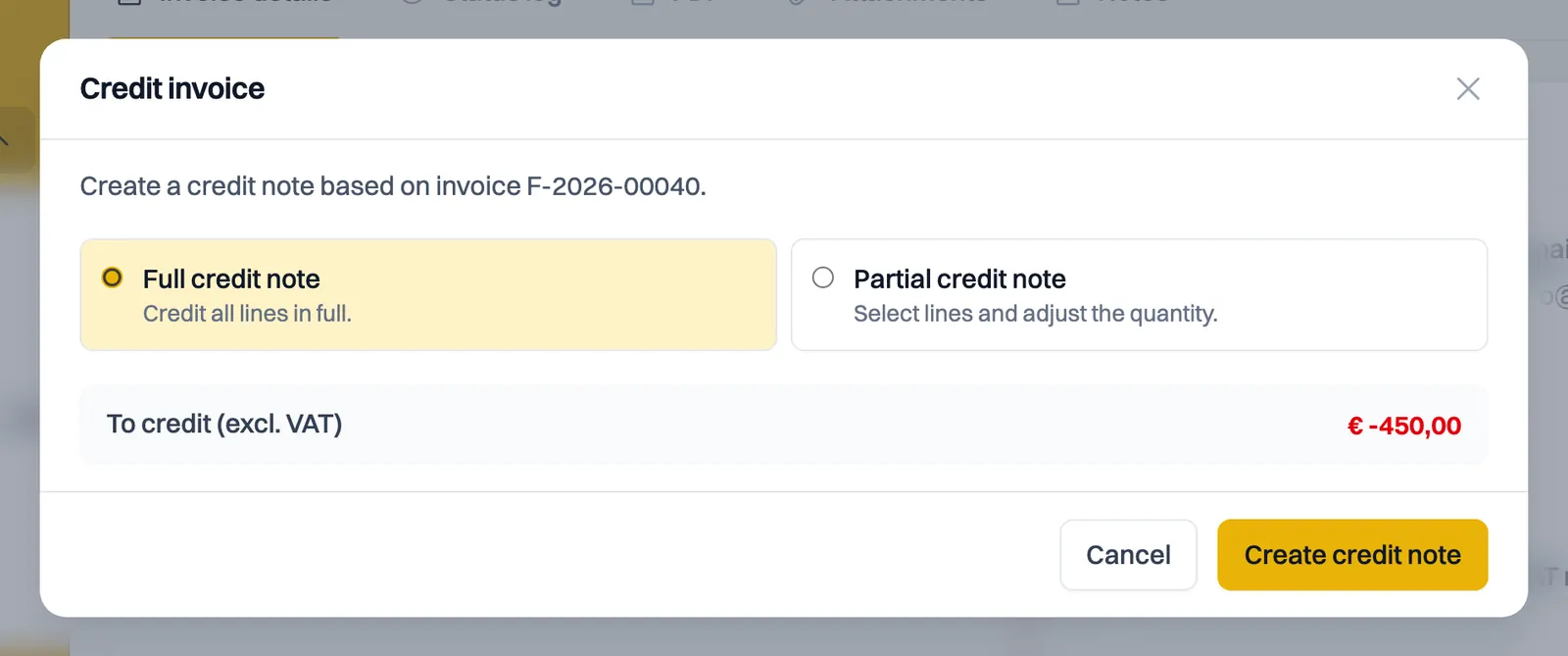
- Click Credit invoice.
- Choose Full credit note to credit all lines in full, or Partial credit note to select lines yourself and adjust the quantity. Fractional quantities such as 0.5 hour are fine. All lines are selected by default. Untick the lines you do not want to credit, leaving only the intended lines selected.
- Check the amount at To credit (excl. VAT) and click Create credit note.
- Check the draft credit note and send it to your customer, just like an invoice. Creating the credit note does not send it automatically.
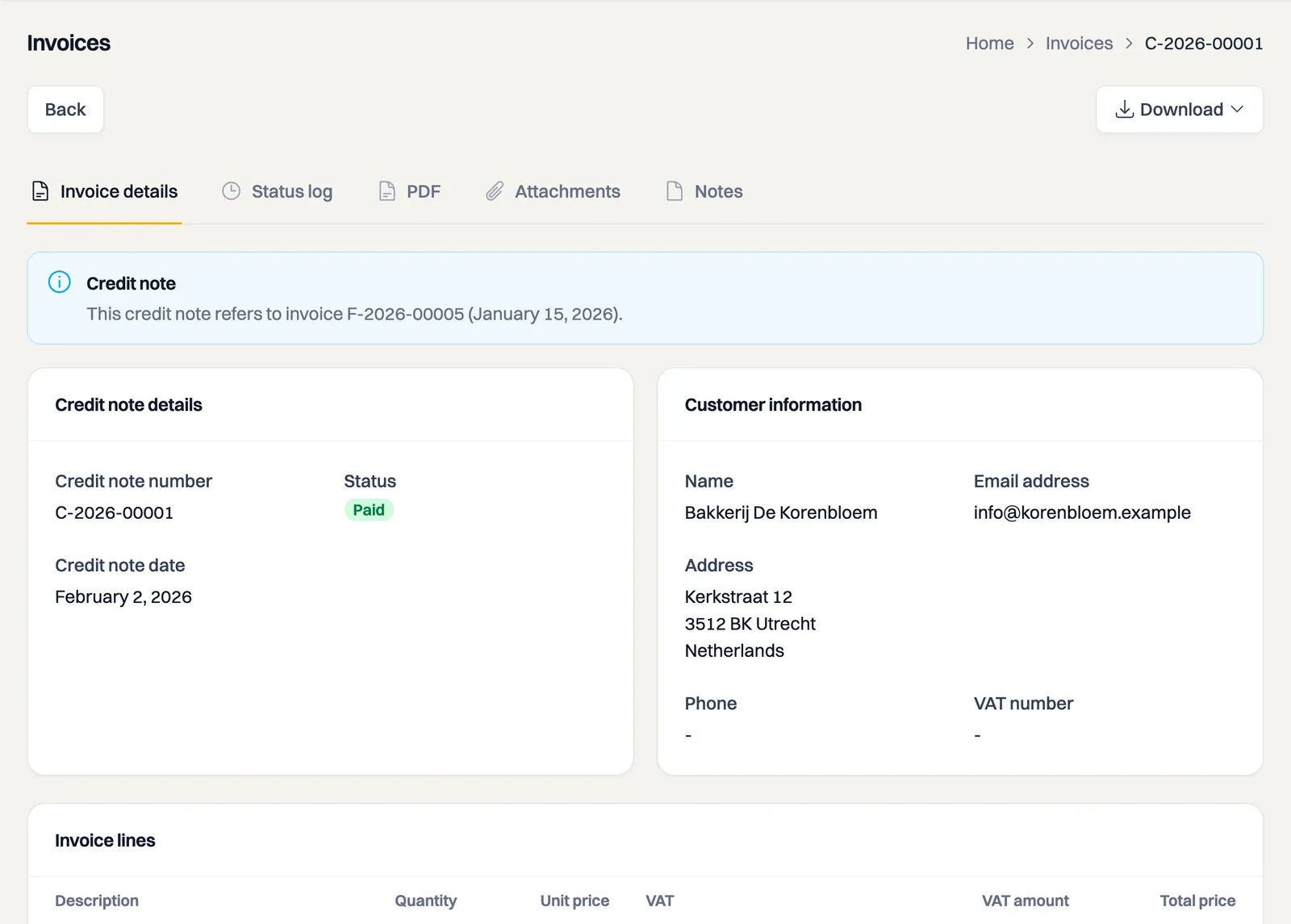
The credit note starts as a Draft, with negative amounts that mirror the invoice lines. VAT is corrected along with them automatically. Where the credit note number will go you still see Draft: the credit note gets that number when you send it. Sending then works just like sending an invoice.
Milo makes sure you can never credit too much: for every invoice line it tracks how much has already been credited. A line that has been credited in full cannot be credited again; you get a clear message instead.
What happens to the original invoice
Invoice and credit note reference each other: on the credit note you see which invoice it belongs to, and on the invoice you see how many credit notes exist and the net total still outstanding. Once an invoice is fully credited, nothing remains outstanding. The customer can no longer pay it online and Milo stops sending payment reminders for it. On the dashboard Milo counts net figures: credit notes are subtracted from your invoiced amount.
A standalone credit note
Do you want to credit something without the original invoice in Milo, for example because it was made in your previous tool? Create a new document and pick Credit note as the type. You enter the amounts as positive numbers; Milo stores them on the credit note as negative automatically. A standalone credit note can still be edited freely while it is a draft.
Such a credit note really does stand on its own: it is not offset against an outstanding invoice. Milo says so as soon as you pick the type. If you do want it offset against an invoice that is in Milo, use Credit invoice on that invoice itself.
Editing and revoking
A credit note created from an invoice cannot be edited, not even as a draft. Its lines are an exact mirror of the invoice lines; changing them would skew the settlement. If something is wrong, delete the draft, or revoke an already sent credit note, and credit again.
After sending, a credit note moves through the same kind of statuses as an invoice: Pending, Viewed and Paid. Once you have refunded or settled the amount, mark the credit note as Paid with Change status. With Revoked you undo a credit note: the credited quantities become available again, so you can credit the invoice once more. Revoking is final; a revoked credit note cannot be reactivated and no longer counts anywhere.
Numbering
Credit notes have their own numbering series, separate from invoices and quotes, with their own prefix and starting number. You set them under Settings > General > Numbering, in the Credit notes row. On the right you see the number the next credit note will get. This is only possible while no credit notes exist yet; after that the series is fixed. The article on invoice numbers and number series covers how Milo numbers documents.
Downloading
Open the credit note and use Download PDF or Download UBL. The UBL file is the e-invoicing format that accounting packages can import.
What your customer sees
Your customer receives an email with a secure link and a PIN, just like with an invoice, and can view the credit note online and download the PDF. There is nothing to approve or sign, and a credit note can never be paid online: the pay button and the payment QR belong to regular invoices only. The secure link of a credit note is valid for 14 days; resending the credit note starts a new 14-day period. For an outstanding invoice that can be paid online, the link keeps working until it has been paid.
In the invoice list, show only credit notes with Document type > Credit notes.
Can't figure it out? Ask Milo via the chat in the bottom right corner, or email [email protected].