Got a batch of invoices that have been paid, or do you want to send reminders in one go? Select the documents in the overview and use the bulk actions. Milo runs the action per document and shows afterwards what did and did not succeed.
Selecting documents
- Go to Invoices or Quotes.
- Tick the documents you want to handle on the left of each row. The checkbox in the header selects everything on the page at once.
- Hold Shift while clicking to select a whole range between two rows.
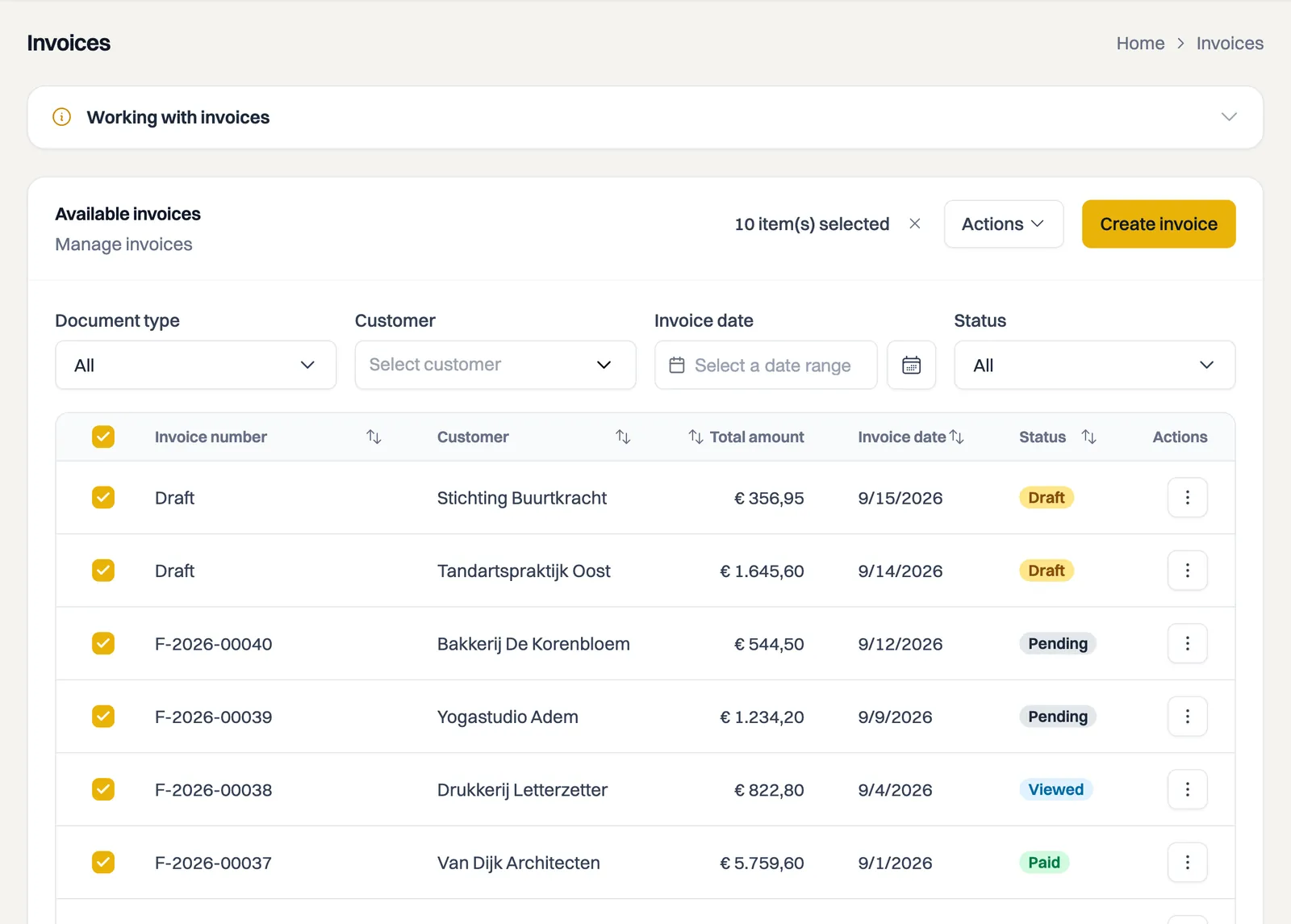
As soon as something is ticked, the counter item(s) selected appears above the list, with the Actions button and a Clear selection button. The selection applies to the page you are on.
More rows on one page
Because a selection belongs to the page, it helps to make the page bigger first. At the bottom of the list is Per page, where you choose between 10, 25, 50 and 100 rows. At 100 rows you can, for example, select a whole month at once with the tick box in the header.
Milo remembers your choice per list, so invoices and hours can have different page sizes. That choice applies on the device and browser where you make it.
Actions for invoices
- Change status: sets the selected invoices to Paid. That is currently the only status you can set in bulk. Milo asks for confirmation first.
- Send reminder: sends your customers a payment reminder. This only works for invoices that qualify, so invoices whose due date has passed. See also the article on sending payment reminders.
- Download merged PDF: delivers a single zip file with one PDF per document. More on exporting is covered in the article on downloading and exporting invoices.
- Delete: deletes the selected documents. Only documents with the status Draft can be deleted. Milo asks for confirmation and warns that this cannot be undone.
Actions for quotes
For quotes the bulk actions are Send email, Download merged PDF and Delete. Changing the status of several quotes at once is not possible.
When not everything succeeds
Milo handles each document separately. If one does not meet the conditions, for example an invoice that has already been sent and therefore cannot be deleted, the others still go through.
A window then shows the result: Partially successful, with how many succeeded and how many failed. That way you see straight away which documents still need your attention.
When bulk actions are unavailable
If your subscription has expired, your account is in read-only mode and the Actions button is disabled, including for the zip download. Fetching a PDF or UBL file per document still works. See the article on an account in read-only mode.
Still stuck? Ask Milo via the chat in the bottom right, or email [email protected].