When you send an invoice or quote from Milo, your customer receives an email with a secure link. Through that link they view the document online, download the PDF and the attachments, and can sign a quote digitally right away. The page is protected with a PIN, so only the recipient has access. This article describes what your customer sees; you can share it if someone gets stuck.
Opening the secure link
The customer clicks the link in the email from Milo. That opens the public page of the invoice or quote. No Milo account is needed to view the document.
Entering the PIN
The page asks for a PIN. That code is in the same email that carried the link. Enter the PIN and click Verify PIN. With the right code the document appears; with a wrong one Milo says "Invalid PIN, please try again".
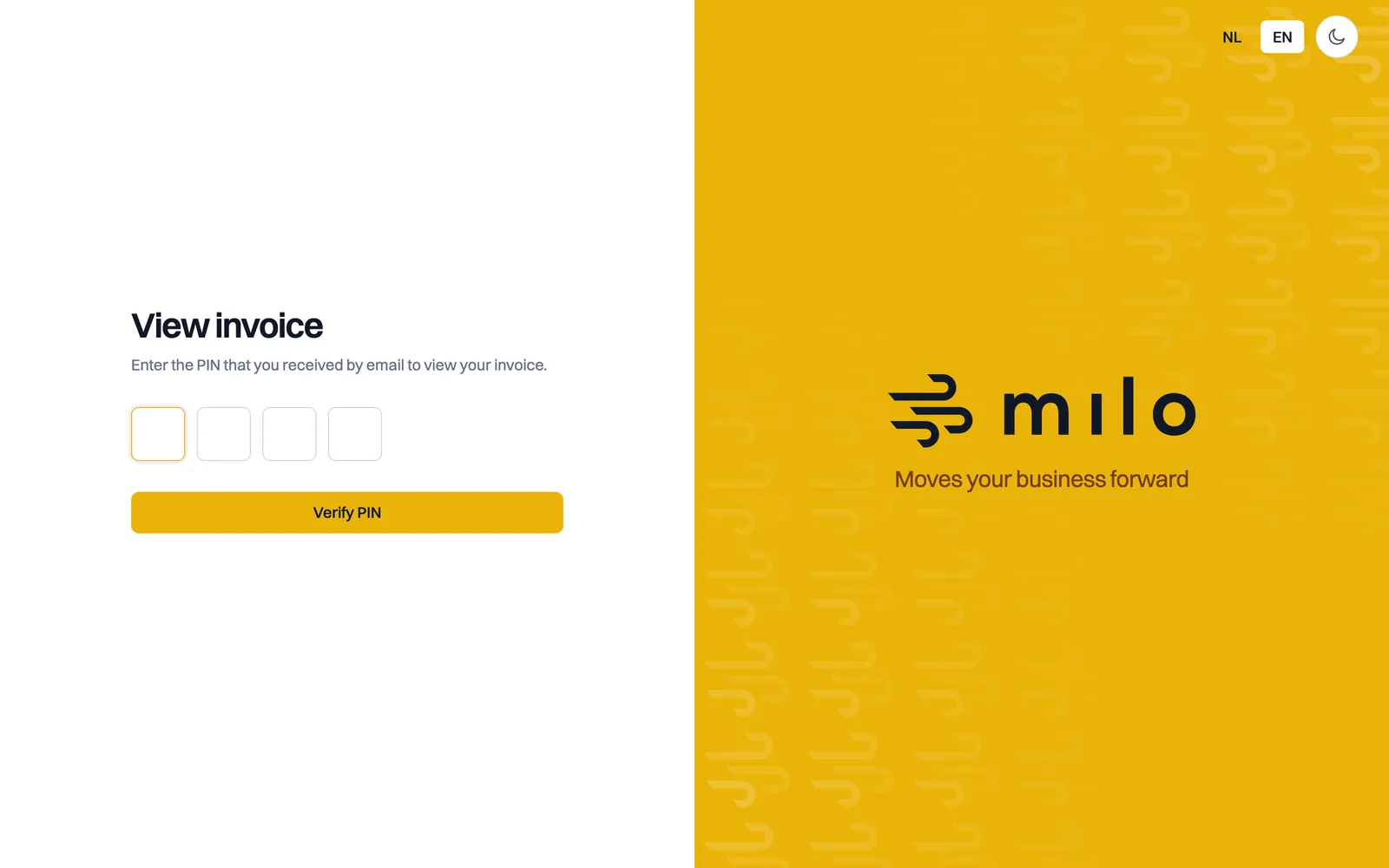
After several wrong attempts in a row, Milo temporarily blocks the page and shows a message asking you to wait. That is protection against PIN guessing. Wait about fifteen minutes and try again with the correct code; the block lifts by itself.
Viewing and downloading the document
Once the PIN is verified you see the full document with the lines, VAT and totals. Under Documents you find everything you can download:
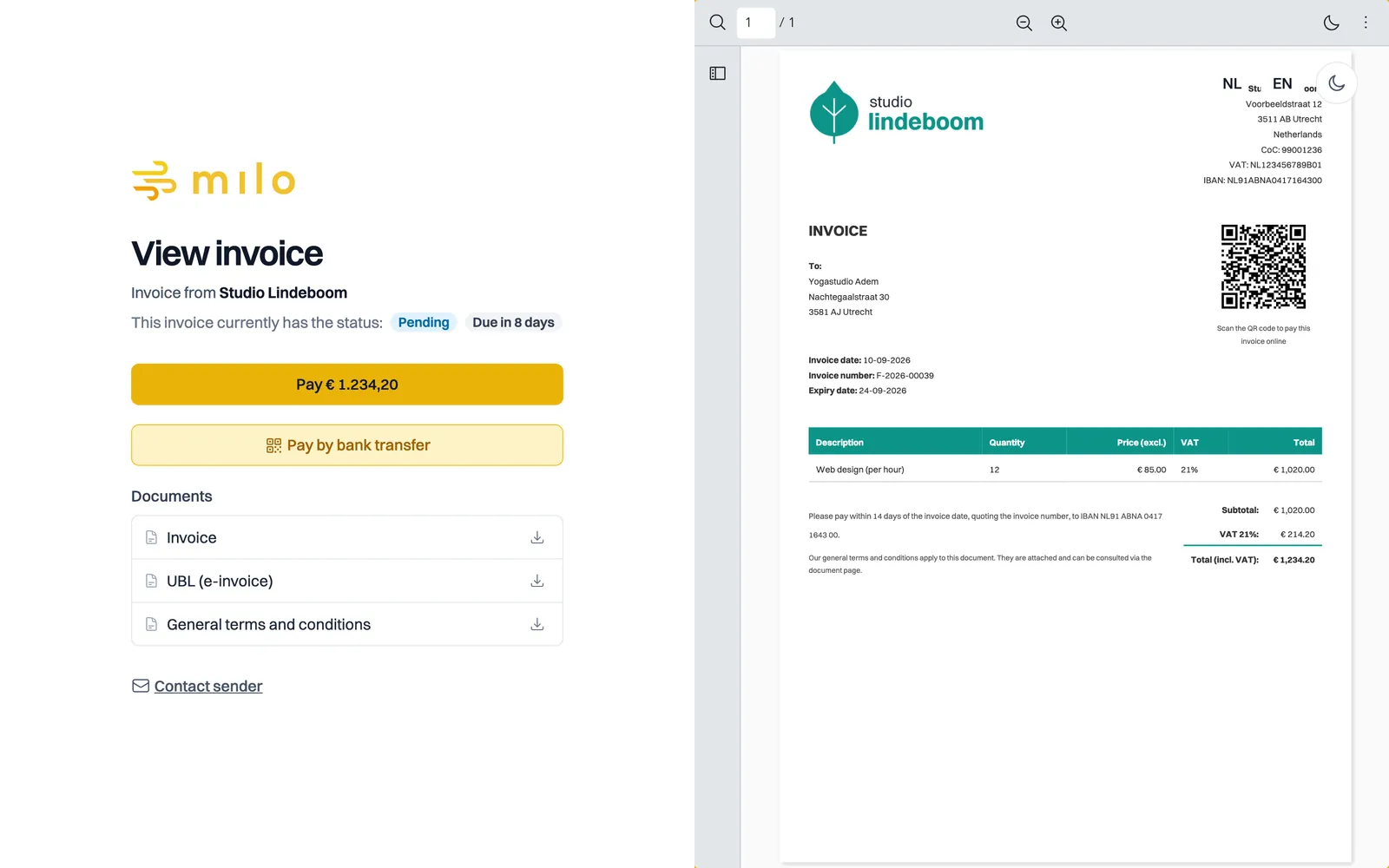
- the PDF of the invoice or quote;
- the sender's terms and conditions, if they belong to this document;
- on a quote to a private individual, the right-of-withdrawal information with the model form;
- any attachments the sender included;
- on an invoice, where available, the UBL file (the e-invoice) for your own bookkeeping.
Paying an invoice online
If the sender has a Mollie connection, the page carries a Pay button with the outstanding amount. It takes you to Mollie's payment environment, where you pay with iDEAL | Wero or a credit card, for instance. You then land on a status page showing Payment successful, Payment processing or Payment failed. The PDF of such an invoice also carries a QR code you can scan with your phone; that takes you straight to the payment page, without a PIN.
If you see no pay button, the sender does not accept online payments or the invoice is already marked as paid. In that case transfer the amount using the details on the invoice.
Approving or declining a quote
On a quote you choose I agree or I disagree under Respond to this quote. When declining, Milo asks for a short reason, which goes to the sender. After your choice you see a confirmation on the page and the sender gets a notification.
You agree with that button, even when the quote came attached to the email as a PDF. A reply by email is not recorded as agreement, which the email carrying the quote says as well.
Signing a quote digitally
If the sender enabled digital signing, you sign the quote on the same page:
- Open the quote through the link and PIN and click I agree. The Sign quote window opens.
- Fill in Your name and draw a signature in the signing area with your mouse, touchpad or finger. Clear lets you start over.
- Click Send verification code. Milo emails a six-digit code to the address it holds for the customer. You do not have to enter an address yourself.
- Enter the code. It is valid for ten minutes; after that, Request a new code gets you a fresh one.
- Click Sign quote.
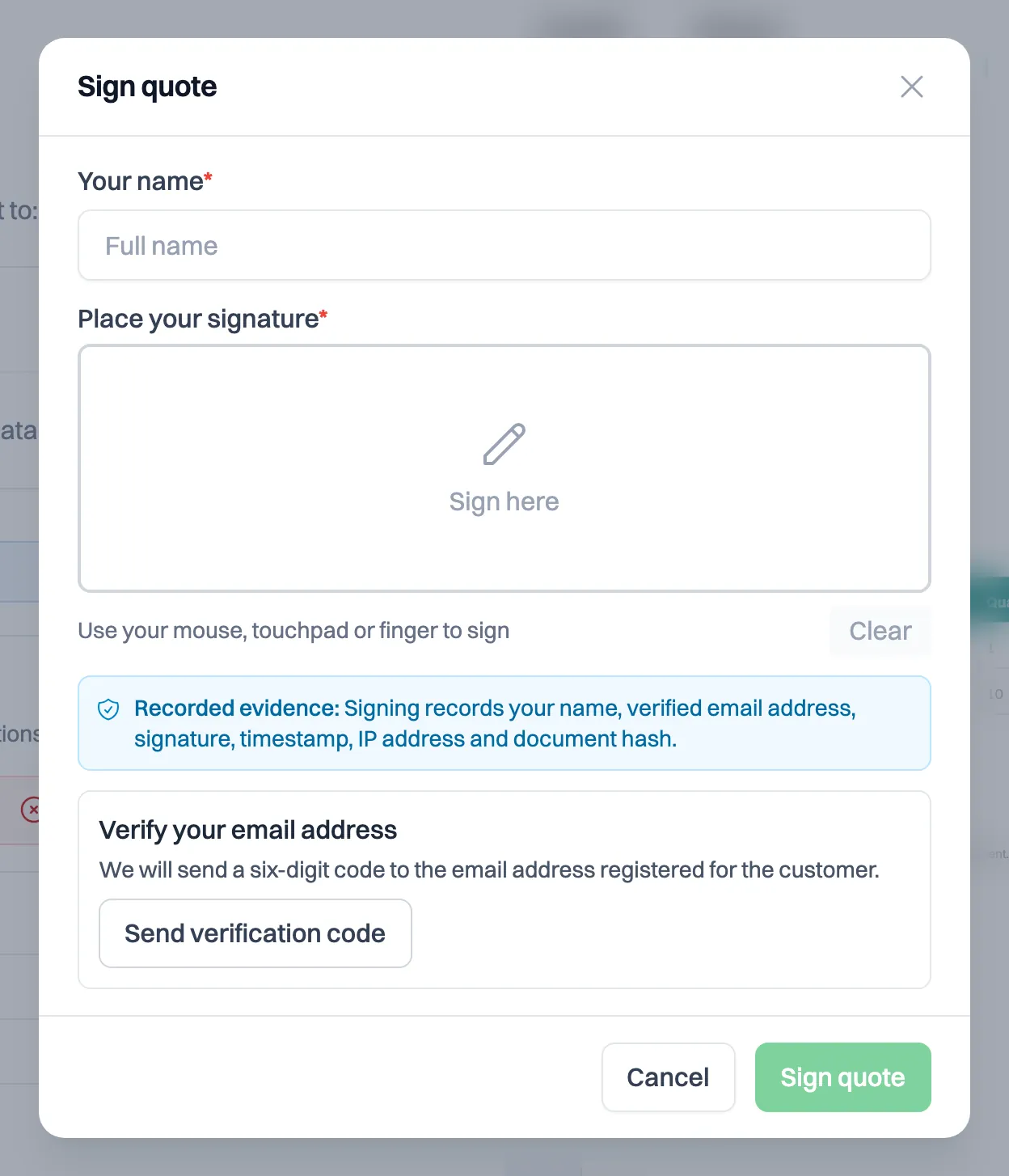
When signing, Milo records your name, the verified email address, the signature, the timestamp, the IP address and a checksum of the quote PDF. The signed PDF shows all of that except the IP address, with the time in UTC and in Dutch time. The IP address stays in the evidence file. The signed quote is then downloaded, and both you and the sender receive it by email. A quote that has already been signed cannot be signed again.
Code not arriving? Check your spam folder. The address the code goes to is the one the sender holds in your customer details; if that is wrong, get in touch with them.
Are you a private individual?
If you are buying for private purposes, the quote page shows extra information:
- the total amount including VAT, right next to the button;
- a statement that agreeing entails an obligation to pay;
- a checkbox with which you can expressly ask for the work to start before the cooling-off period ends. That box is off by default;
- right by the button, the link Read the information on your right of withdrawal first, with the model form.
The button then reads Accept quote with obligation to pay instead of I agree. If you sign digitally, the last button reads Sign quote with obligation to pay.
After you agree you receive an email confirmation. You then have 14 days to change your mind. While that period runs, the page carries a Withdraw agreement button: you fill in your name and email address, may add a statement and confirm in a separate step. You receive an email confirmation of that. Withdrawal also works with a plain email to the sender; the button is a convenience, not the only valid route.
How long the page stays reachable
The link in the email is valid for 14 days. If the invoice can be paid online, the page stays open until it has been paid, and then for another 90 days, so you can still pick up the proof of payment. If the PDF came attached to the email, keep it if you need the document for longer.
No email or PIN received?
Check your spam or junk folder first. If you cannot find the email with the link and PIN, contact the sender (the company that sent the invoice or quote); they can send the document again.
Do you send invoices or quotes from Milo yourself? How to create and send them is covered in the articles on creating your first invoice and on creating quotes and digital signing.
Still stuck? Ask Milo via the chat in the bottom right, or email [email protected].