In Milo you create and send quotes in much the same way as invoices. Your customer receives a secure link and can approve or reject the quote, or sign it digitally. You convert an approved quote into an invoice with one click. You find quotes under Quotes in the menu.
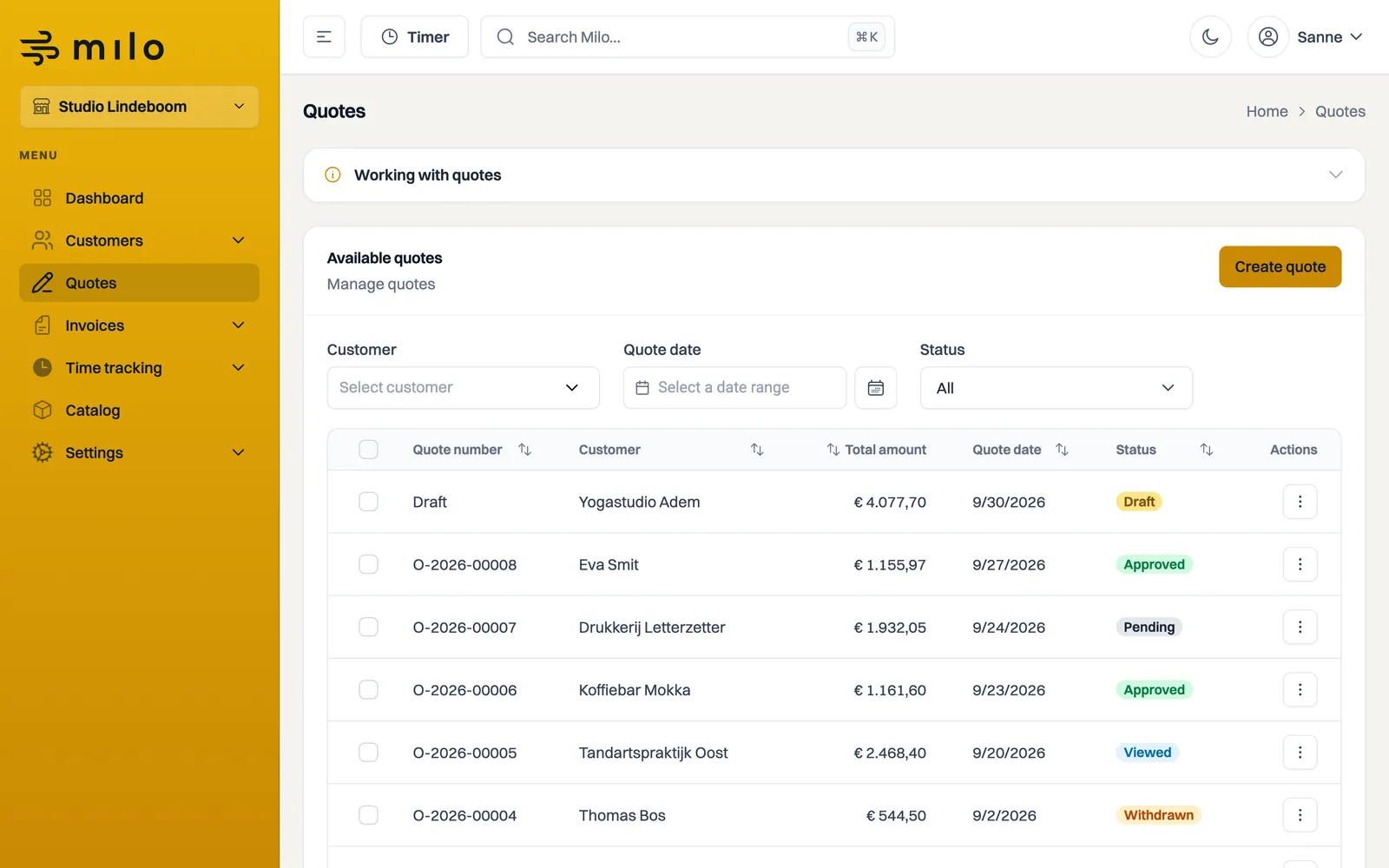
The quote overview
Under Quotes you see all your quotes with their status. With Create quote you start a new one.
Creating a quote
- Click Create quote.
- Choose the Customer or create one directly. On a new customer, mind the Type: Private individual (consumer) brings extra rules with it.
- Under Quote details, set the validity term and the date. Milo calculates the due date automatically.
- Add Quote lines, just like on an invoice: type a description (or choose a catalog item), enter the quantity and choose the VAT code. Milo calculates the totals.
- Add Attachments if you want, for instance a drawing or a project plan.
- Click Create. The quote gets the status Draft.
The lines and totals work the same way as on invoices.
Check before you send
A sent quote is fixed: you cannot change the lines, the amounts or the attachments afterwards, and the quote cannot go back to draft. So run through it once more before sending. If you do need to change something later, duplicate the quote and send a new one under a new number. See the article on quote statuses.
If you have set up terms and conditions, they go along automatically. If you have not, Milo warns you when sending. See the article on setting up and sending your terms and conditions.
Digital signing
Digital signing is part of Professional, and therefore of your trial too. If you switch it on while on Starter, a window appears pointing you to the plans. Creating, sending and getting quotes approved works on every plan.
If you want the customer to sign the quote digitally, turn on Enable digital signing in the quote details. On the secure page your customer fills in their name and draws a signature. Before they can sign, Milo sends a six-digit verification code to the email address it holds for the customer, and they have to enter that code. That way the link and the PIN are not the only things standing between "email forwarded" and "signed under someone else's name". Your customer does not have to supply an email address themselves.
When signing, Milo records: the name given, the verified email address, the signature, the timestamp, the IP address and a SHA-256 checksum of the original quote PDF. The signature block on the signed PDF shows all of that except the IP address, with the time in UTC and in Dutch time. The IP address stays in the evidence file. The checksum makes it possible to show later that the document has not been altered.
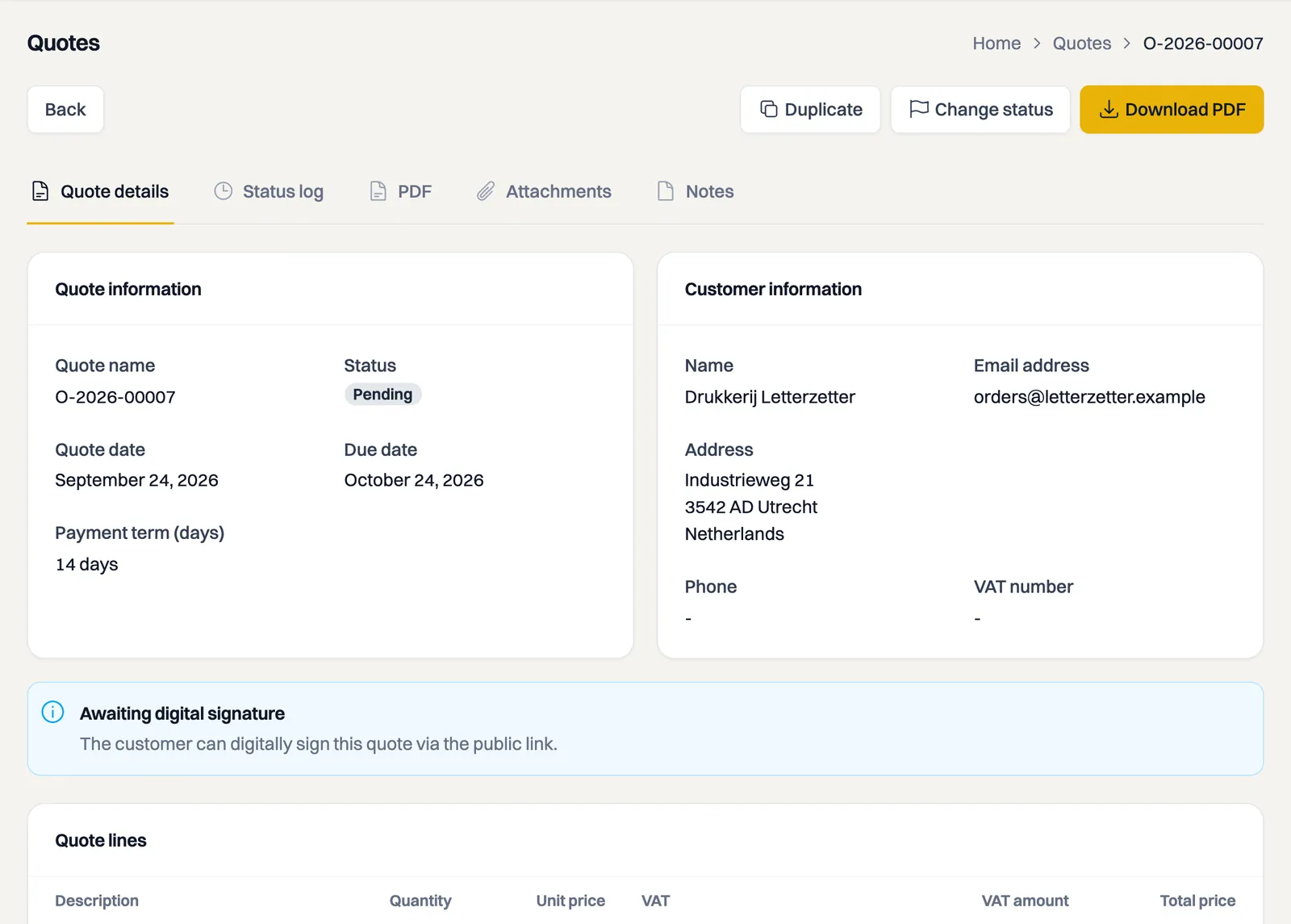
As soon as it is signed, both your customer and you receive the signed PDF by email. Your customer also gets it as an immediate download. On a quote still waiting for a signature you see the message "Awaiting digital signature".
Sending and statuses
With Send email you send the quote to your customer. They receive a secure link to view the quote and respond. What your customer sees on that secure page — entering the PIN, viewing the quote and signing it digitally — is covered in the article on viewing and signing an invoice or quote online.
Quotes move through statuses such as Approved, Declined and Expired, so you always see where a quote stands. Which statuses exist and what you can still do from each one is covered in the article on quote statuses.
Quotes to private customers
If your customer is a private individual, Milo automatically sends the statutory cooling-off information along, shows amounts including VAT and gives your customer 14 days to undo the agreement. For this your company's phone number has to be filled in, otherwise you cannot send the quote. What that means for you, and when you may start the work, is covered in the article on quotes to private customers.
Converting a quote into an invoice
Once a quote is approved, Convert to invoice turns it into an invoice. The customer, the lines, the discount and your terms come along, and the invoice gets today's date. See the article on converting a quote into an invoice.
Still stuck? Ask Milo via the chat in the bottom right, or email [email protected].