If you want to send a drawing, a project plan or a photo along with a quote or invoice, you add it as an attachment. Your customer finds the files on the secure document page, next to the PDF of the document itself. Attachments live on the Attachments tab of a quote or invoice.
Adding files
- Open the quote or invoice and go to the Attachments tab.
- Drag your files onto the drop area, or click it to pick them.
- You can select several files at once.
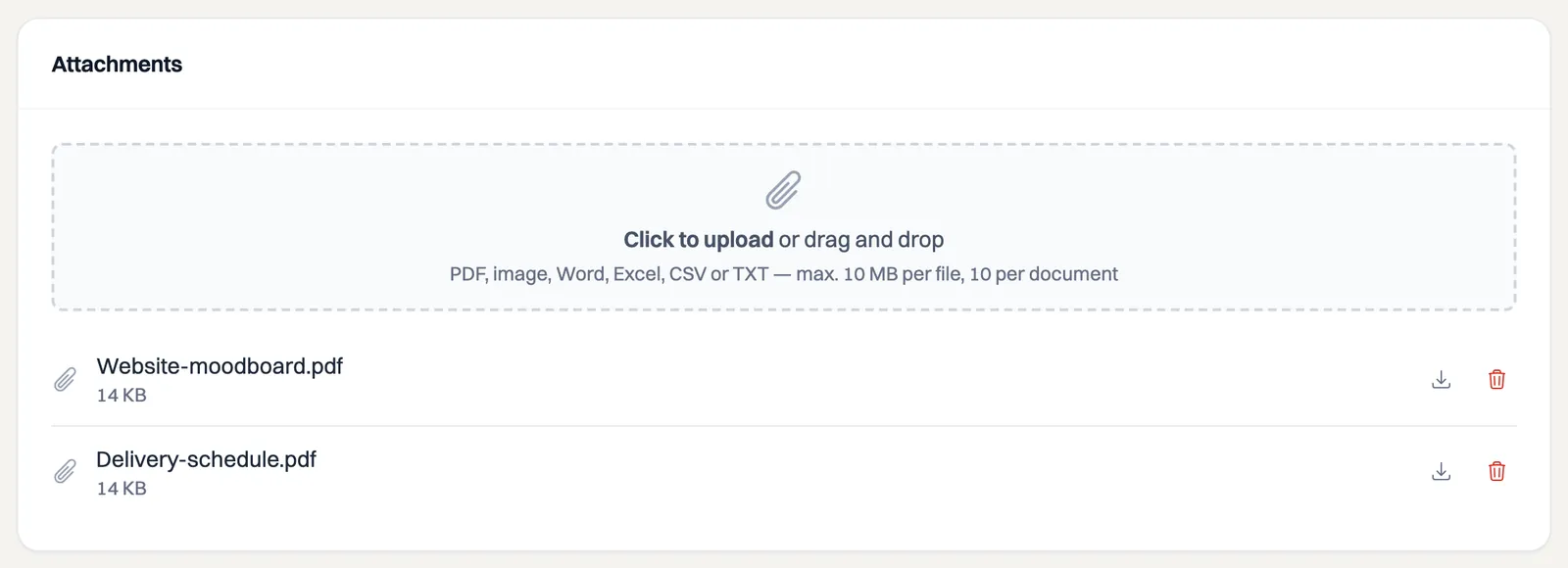
Allowed formats are PDF, PNG, JPG, Word (doc and docx), Excel (xls and xlsx), CSV and TXT. Each file may be up to 10 MB, and a document holds up to 10 attachments.
If you add attachments while creating a new quote or invoice, they first show as not saved yet. Milo uploads them as soon as you save the document. If you are working offline the document is stored but the attachments are not: add them again once you are back online.
Only while the document is a draft
You can add, replace or remove attachments only while the document has the status Draft. As soon as you send it, the set of attachments is fixed and you see a message that they can no longer be changed. That is deliberate: what your customer received has to remain exactly retrievable later on.
So check your attachments before you click Send email. Forgot something? Email the file yourself, or create a new document.
Removing an attachment
Click the bin icon behind the attachment. Milo asks for confirmation and names the file. This too only works on a draft.
What your customer sees
Your customer does not get the attachments as email attachments, but through the secure document page. Under Documents there is a list with the PDF of the quote or invoice, your terms and conditions if they belong to this document, and below that every attachment with its file name. One click downloads the file. It takes the same link and PIN as the document itself, so your attachments are not publicly discoverable.
What else your customer sees on that page is covered in the article on viewing and signing an invoice or quote online.
Still stuck? Ask Milo via the chat in the bottom right, or email [email protected].