An invoice you create sits ready as a Draft first. Only when you send it does an email go out to your customer and does the invoice really start counting. You send it from the invoice itself or from the invoice overview.
Before you send
- Your customer needs an email address. Without one, the send button does not appear.
- Check the lines, the VAT and the due date. While the invoice is a Draft you can still change everything freely. After sending you cannot.
- If your subscription has expired, your account is read-only and you cannot send.
Sending the invoice
- Open the invoice, or use the action menu behind the invoice in the overview.
- Choose Send email.
- Milo asks for confirmation, showing which customer the invoice goes to and that the status changes to Pending.
- Confirm. You see the message Email sent to with your customer's name.
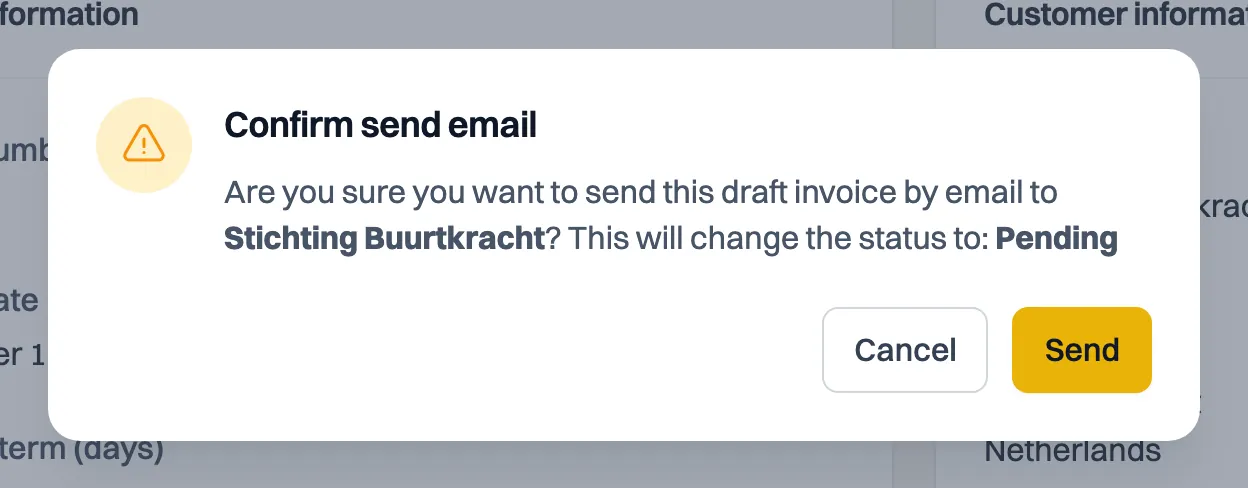
From that moment the invoice is Pending and the due date starts running. When your customer opens the invoice, the status switches to Viewed.
What your customer receives
Your customer gets an email with a link to a secure page and a four-digit PIN to open it. There they view the invoice, download the PDF and optionally pay online. Exactly what your customer sees is covered in the article on viewing and signing an invoice or quote online.
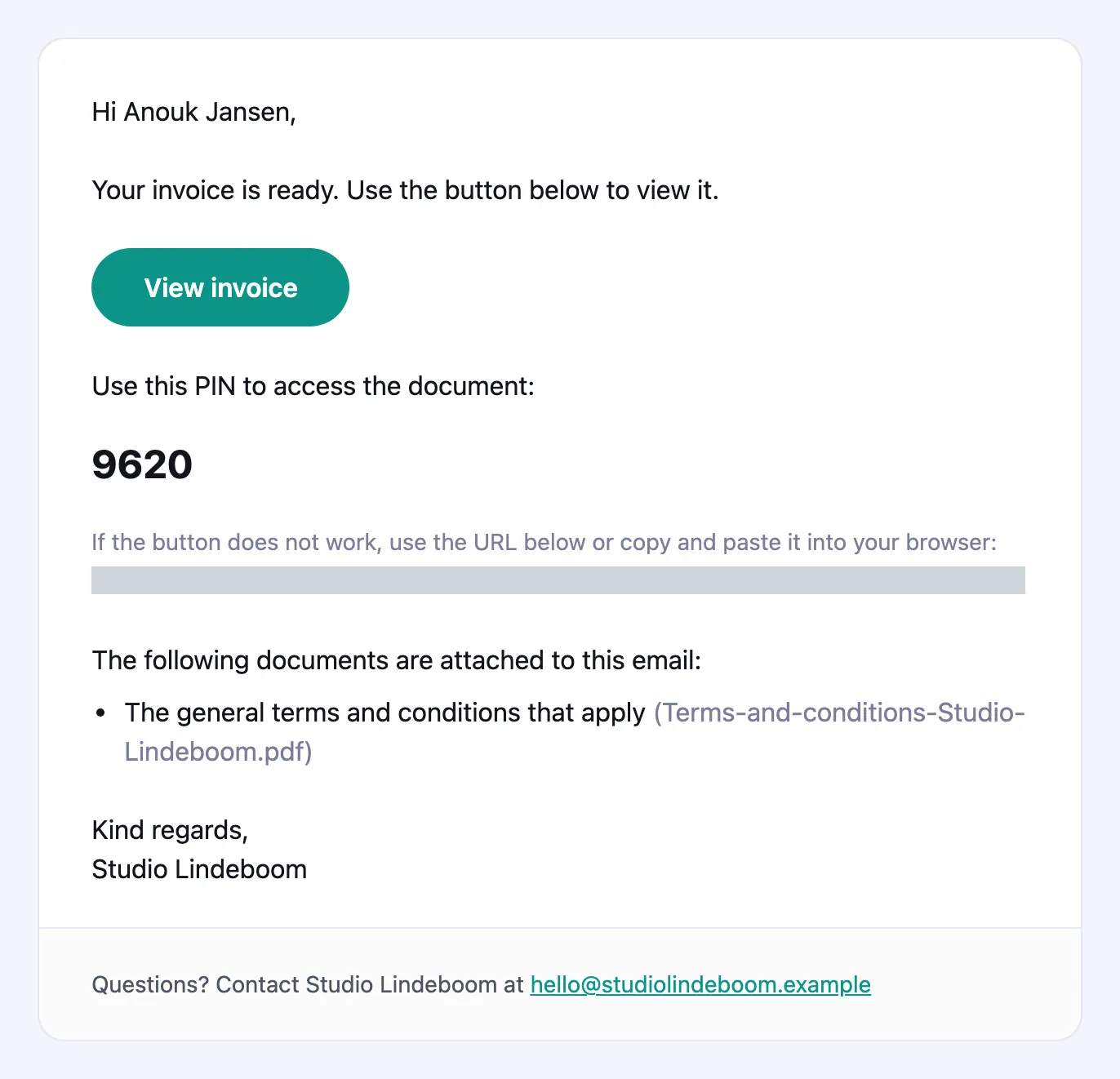
By default the invoice itself travels with the mail as well: the PDF, plus a UBL file their accounting software can read in. A quote carries only the PDF. Your customer then has their own copy straight away and no longer needs to open the secure page. There is one trade-off: if they do not open that page, Milo cannot see that the document has been viewed either, and the status stays on Pending.
If you would rather do it differently, switch Attach invoice and quote off under Settings > General > Documents. The link and the PIN travel along either way.
If the invoice comes from a quote with terms and conditions, those terms are attached to the email and also appear on the secure page. A standalone invoice goes out without terms; see the article on setting up and sending your terms and conditions. Attachments you added to the invoice yourself are on the secure page under Documents.
The secure link is valid for 14 days. For an invoice that is still outstanding and can be paid online, the link keeps working until it has been paid, so your customer never hits an expired link. After payment the page stays reachable for another 90 days.
The email comes from your company
The email to your customer is dressed as a message from you rather than from Milo:
- your company name is the sender name in your customer's inbox;
- your logo is at the top, or your company name if you have not set a logo yet;
- the button in the email carries the accent colour from your house style;
- below the email it says "Questions? Contact" your company name, with your company's email address;
- if your customer replies to the email, that reply reaches you at the email address from your company details, not Milo.
Only the footer still says the email was sent through Milo. The address the email is technically sent from stays Milo's, because that is what gets it delivered reliably. Your customer does not see that difference in the sender name.
If you leave the email address under Settings > Company details empty, your customer cannot reply to the email, so do fill it in.
If your customer lost the email
You cannot email a sent invoice again from Milo: Send email only exists while the invoice is a Draft, and an invoice cannot go back to Draft afterwards. There are two ways to help your customer anyway:
- Once the due date has passed, use Send reminder. That email contains the secure link and the PIN again.
- If you do not want to wait, download the PDF with Download PDF and forward it yourself. The original link keeps working in the meantime.
A copy for yourself
If you want to receive every invoice you send, fill in an Invoice copy email address under Notifications. You then automatically get a copy with the PDF attached. See the article on setting up notifications from Milo.
Several invoices at once
You do not always have to go through invoices one by one. In the overview you select several documents and use the bulk actions, for example to send reminders in one go. See the article on handling several invoices or quotes at once.
Still stuck? Ask Milo via the chat in the bottom right, or email [email protected].