In the catalog you record products and services you use more often, with a fixed price and VAT code. When drawing up an invoice or quote you add such an item as a line in a few clicks, without typing the description and price again each time. You find the catalog under Catalog in the menu.
Adding a catalog item
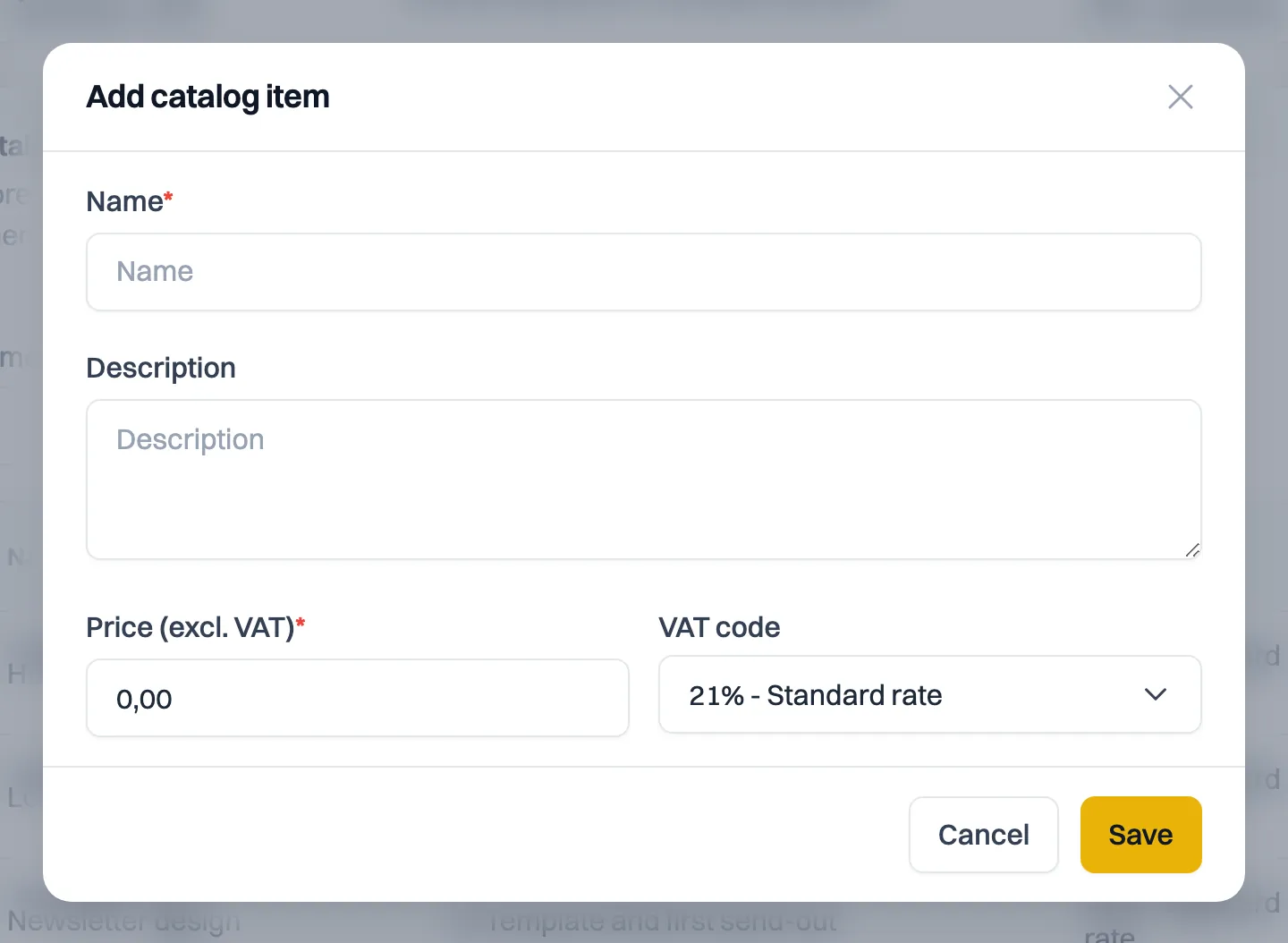
- Click Add catalog item.
- Enter the Name, for example "Consultancy" or "Website maintenance".
- Optionally add a Description. It appears as a note on the invoice line.
- Enter the Price (excl. VAT).
- Choose the VAT code. Milo already fills in 21% - Standard rate.
- Click Save.
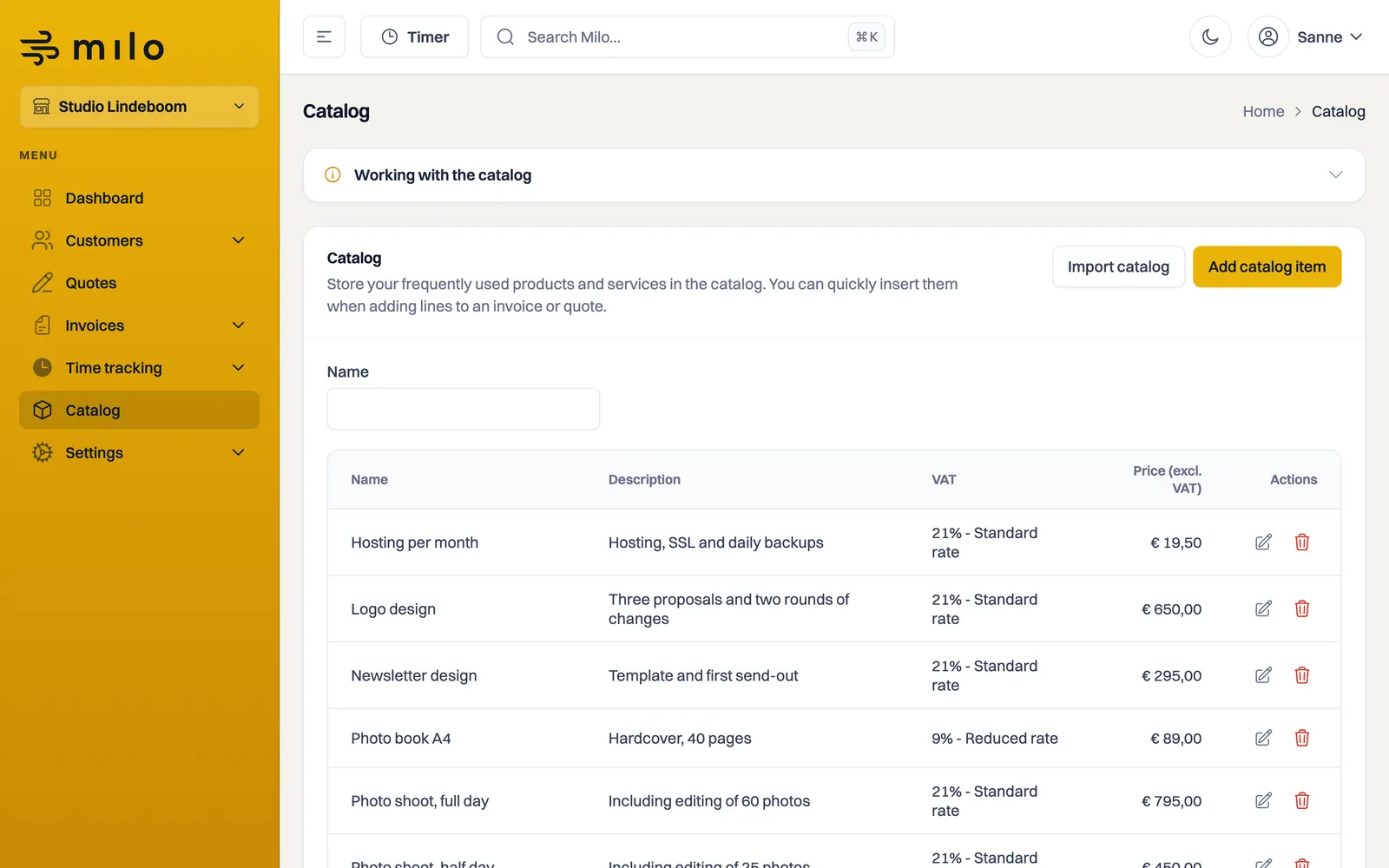
The item then appears in the overview with its name, description, VAT and price.
Using a catalog item on an invoice or quote
When drawing up an invoice or quote, start typing in the Description field of a line. Milo shows matching catalog items under the heading "Catalog items". Choose an item and Milo automatically fills in the description, the unit price and the VAT code. You then only adjust the Quantity. If the item has no VAT code, the line keeps the code it already had.
Importing a catalog
Already have a list of products or services? Click Import catalog to add several items at once from a CSV file.
Imported items do not have a VAT code yet: the VAT code field then shows No default code. Edit the item to give it a code.
Importing is part of Professional, and therefore of your trial too. On Starter the button stays visible, but a window appears pointing you to the plans. Adding items one by one works on every plan.
Editing or deleting items
Behind each item in the overview are buttons to update or delete it. A price change applies to new invoice and quote lines; existing invoices do not change.
If you have recently started applying the small business scheme (KOR), your existing items keep the VAT code they already had. You change those here yourself. The article on VAT on invoices lists the VAT codes there are.
Still stuck? Ask Milo via the chat in the bottom right, or email [email protected].