You can only delete an invoice, quote or credit note while the document has the status Draft. A sent document remains part of your administration and can no longer be deleted.
Deleting one document
- Go to Invoices or Quotes and open the draft.
- Choose Delete from the document actions.
- Confirm in the warning that you want to delete the draft. A draft has no number yet, so check beforehand that you have the right document open.
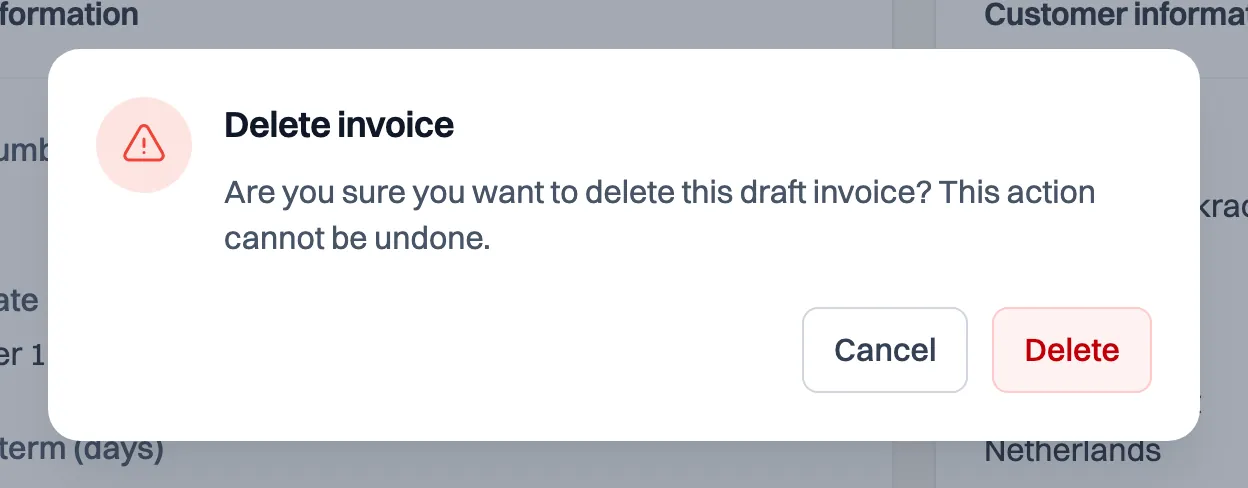
Deletion is permanent and cannot be undone. If the action is missing or disabled, check that the document still has the status Draft and that your account is not in read-only mode.
Removing a draft leaves no gap in your numbering. Milo only assigns the number when you send, so a draft you throw away never had one. See the article on invoice numbers and number series.
Deleting several drafts at once
Select the drafts in the invoice or quote overview, open Actions and choose Delete. Milo handles each document separately. A document that cannot be deleted stays in place; the other valid drafts can still be deleted.
Deleting through the Milo assistant
Ask the assistant to delete a specific draft and preferably include the document number. The assistant first prepares the action and shows what will be deleted. The draft is deleted only after your explicit confirmation. If you only ask how deletion works, or say that nothing should be carried out, the assistant provides an explanation only.
Do you need to correct a sent invoice? Create a full or partial credit note from the original invoice instead. The sent document itself cannot be deleted.
Still stuck? Ask Milo via the chat in the bottom right, or email [email protected].