Under Settings > Subscription you see which subscription you have, how much you use, which plans exist, and which invoices we have sent you. During your trial you also read here how many free days you have left.
Only the account owner manages the subscription
Everyone in the account can open this page, but only the account owner can change anything. If you were invited as a user you see the message Only the account owner can manage the subscription and the buttons are disabled.
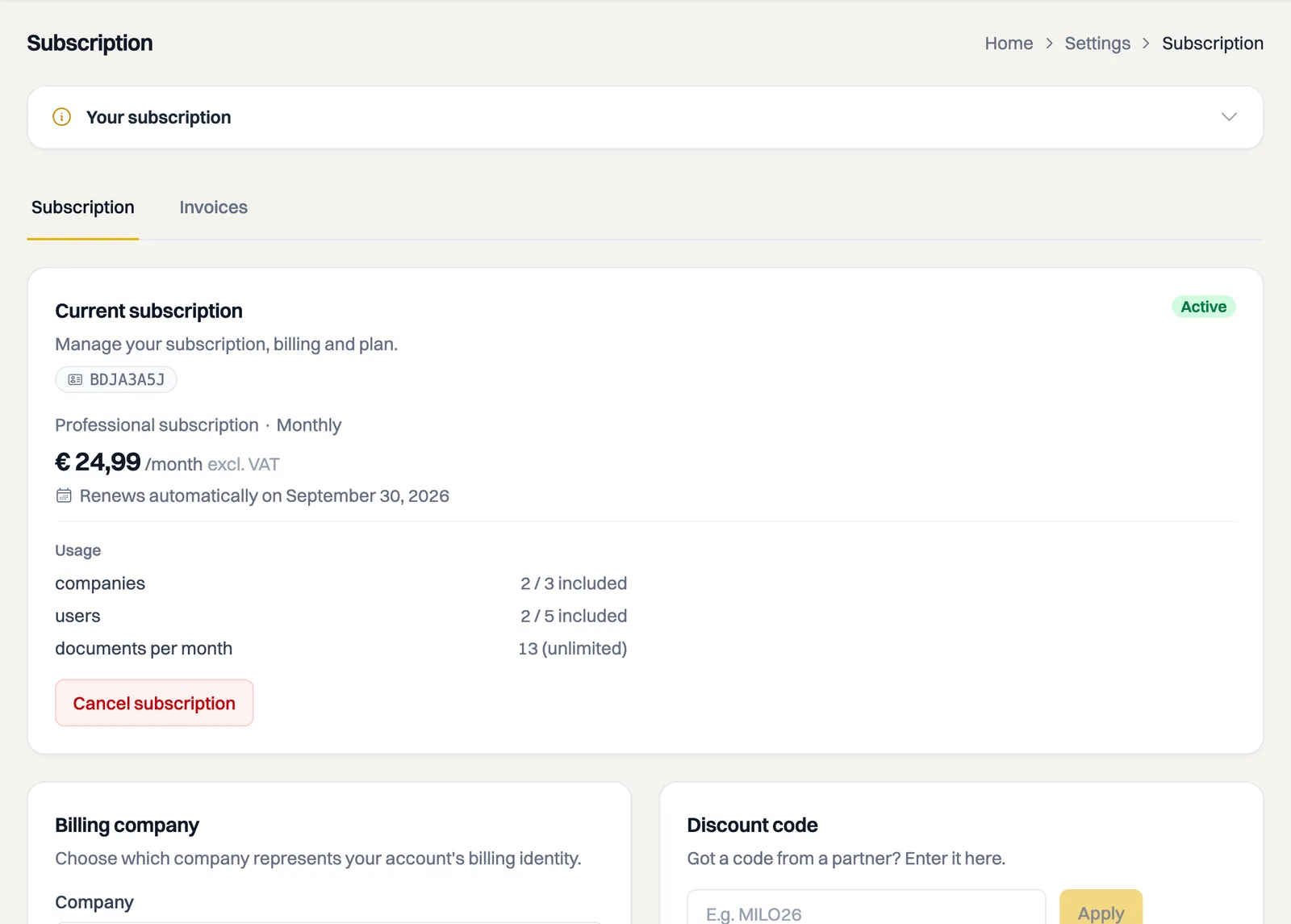
Your current subscription
At the top sits your Current subscription with a status label: Trial, Active, Payment failed, Expired or Cancelled. Below it is the amount that is actually charged, add-ons included, with the date it renews automatically. Under Cost breakdown you see how that amount is composed: the base amount of your plan plus each add-on separately.
Next to your subscription sits your account number, in a small grey label. Pass it on when you contact support and we find your account straight away.
Below that you see your usage: how many companies and users you use out of what is included, and how many documents you created this month.
Choosing a subscription
Under Choose a plan you compare Starter and Professional. Each plan names the price excluding VAT with the amount including VAT next to it, so you see straight away what will be charged. The Bill yearly toggle switches between monthly and yearly; the yearly option shows what percentage you save. Set it to yearly and a note above the plans says that you pay the year up front: if you cancel partway through, your subscription runs to the end of the year and nothing is refunded. Click Choose this plan or Switch to this plan on the plan you want.
If a plan does not fit what you are using now, the switch does not go through and the plan picker tells you why straight away: which limit is in the way and which plan does hold your current usage. If you want to move from Professional back to Starter while three colleagues have access, for instance, you get under that limit first. You can pick the plan that does fit right there.
You may pick a plan while you are still on trial. Your trial continues and you do not pay for the subscription yet; a one cent verification payment is made to establish the direct debit mandate. The subscription only starts once your trial ends. The differences between the plans are covered in the article on subscriptions and pricing.
Included places and extra capacity
Professional includes three companies and five users as standard. These are included places, not hard maximums: you can add extra companies and users through paid add-ons. You cannot reduce capacity below your current usage; reduce the number of places in use first.
A scheduled change
If you move to a cheaper plan or a different interval, that only takes effect at the next billing period. Milo then shows a line starting with From, followed by the effective date, the new amount and the new plan. Until that date arrives you can undo the switch with Cancel scheduled change.
Our invoices to you
At the top of Settings > Subscription, open the Invoices tab: our VAT invoices for your subscription. You also receive them by email. Per invoice you see the invoice number, the date, what the invoice was for, and the total including VAT. The button behind the row downloads the PDF.
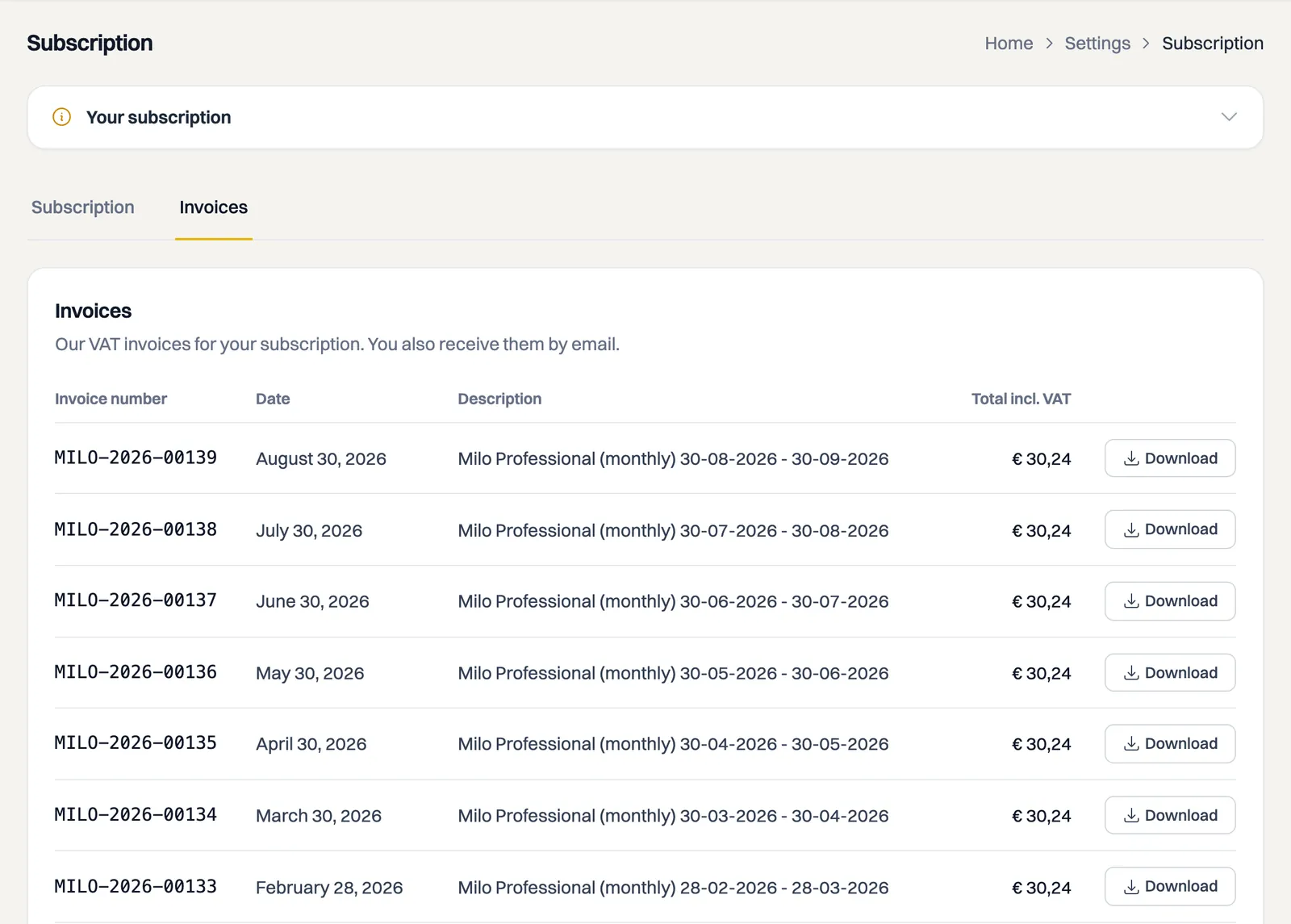
If nothing is listed yet, no payment has been processed. During your trial that is normal.
These invoices cannot be changed: an issued invoice is a snapshot and never changes.
Redeeming a discount code
If you have a discount code from a partner, you enter it under Discount code, next to your billing company. While a discount runs, a green message says so and the plans show the discounted price with the regular price struck through next to it. See the article on redeeming a discount code.
Which company appears on our invoices
If you have several companies in one account, you choose under Billing company which company is your account's billing identity. That name and address appear on our invoices. With only one company this choice is not shown and Milo uses that company.
Terms
At the bottom of the page is the Terms card, with a link to our terms and conditions, the data processing agreement and the privacy statement. Above them you see which versions are on file for your account, and on what date. When there is a new version, the notice appears here and the account owner accepts with the Accept button. See the article about our terms and the data processing agreement.
When your subscription has ended
Once your subscription is over, or your trial has ended, a card here tells you where you stand: Transition period until a date, or Read-only until a date, in which you can still view and export. After a paid period everything still works in full during the transition period; after a trial that period is already read-only. During the transition period the account owner can take extra time once, with Number of days to extend and the Extend transition period button. See the article about after your subscription.
Cancelling
If you want to stop, you cancel with the Cancel subscription button at the bottom of the page. The page then states until which date your current billing period runs. If you pay per year, that is the end of the year and nothing is refunded. Once that period has ended, you first get a transition period of 30 days in which everything keeps working, and after that your account is read-only for 30 days. The article on cancelling your subscription explains exactly how that works.
Still stuck? Ask Milo via the chat in the bottom right, or email [email protected].