The first time you sign in, Milo asks you to create a company. Milo uses these details on your invoices and quotes and to manage your customers. As long as there is no company yet, you see the message "Profile incomplete" at the top. You fill in four parts: general information, address details, contact details and financial details.
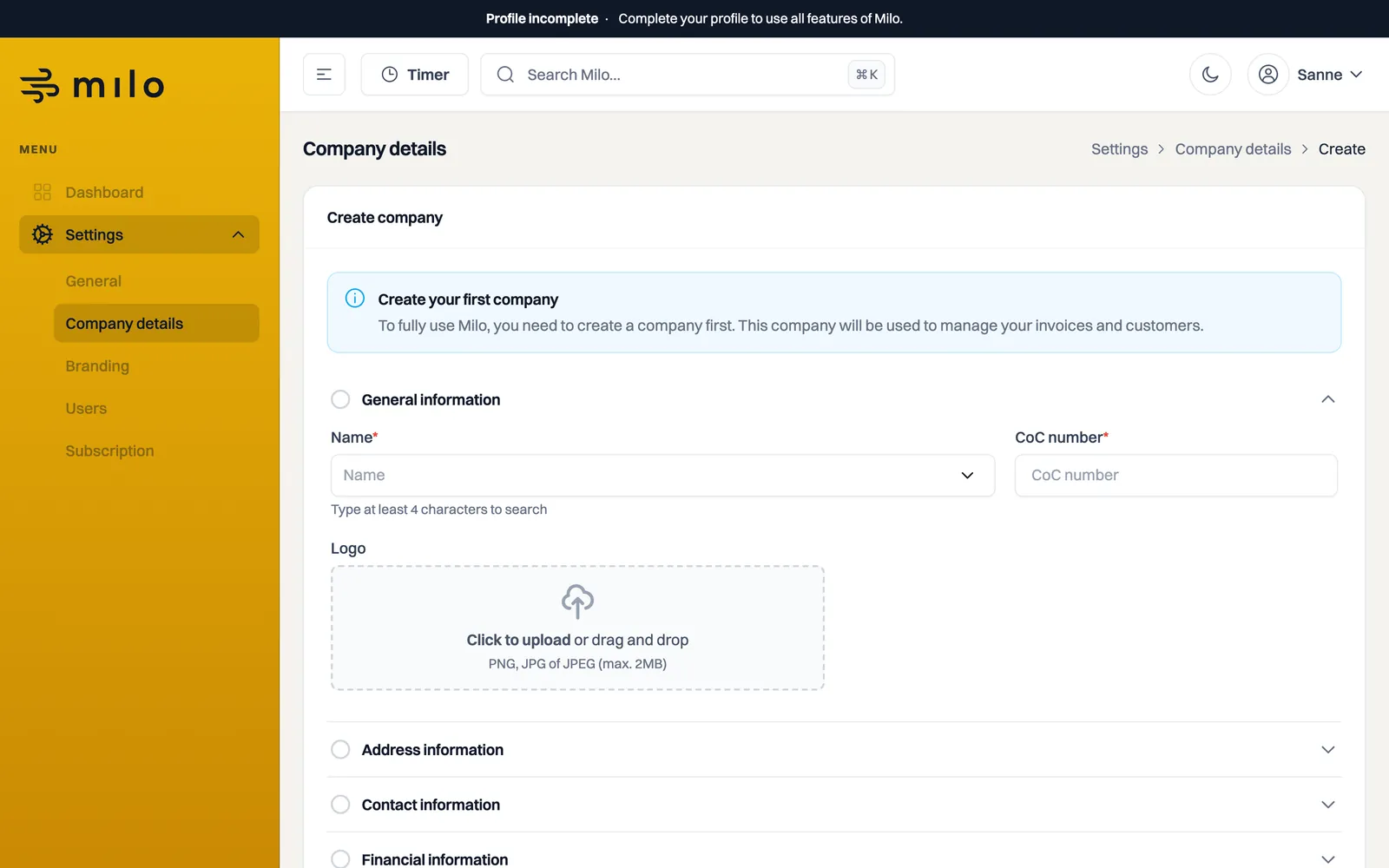
General information
Start with Name. Type at least four letters of your company name and Milo searches the Dutch Chamber of Commerce (KvK) register and shows suggestions. Select your company from the list and Milo automatically fills in the CoC number and the known details. If your company is not listed or something is incorrect, enter the CoC number yourself.
Add an image under Logo (PNG, JPG or JPEG, up to 2 MB). This logo appears later on your invoices and quotes. Click the box to upload a file or drag one onto it.
Address details
Enter the Street name, Number, Postcode, City and Country. If you selected your company through the KvK search, these fields are often already filled in, so check them.
Contact details
Enter a Phone number and optionally your Website. The phone number is required once you send quotes to consumers, because it has to appear in the withdrawal information. Under Email address you provide the address Milo uses for communication about your invoices. If you want to use the same address you sign in with, click Use my email address.
Financial details
Enter your IBAN. This account number appears on your invoices so your customers know where to pay. Then enter your VAT identification number and click Validate to check that it is valid.
For a Dutch company Milo also checks the shape of the number: NL, nine digits, the letter B and two digits, so NL123456789B01. You can type dots, dashes and spaces, Milo strips them out. If the shape is wrong, Milo says it is not a valid Dutch VAT identification number.
If you run a sole proprietorship, Milo points out at this field that you should enter the VAT ID from your invoices, not your VAT tax number. The latter contains your citizen service number and does not belong on an invoice.
Creating the company
Click Create company at the bottom to save your details. Your profile is then complete and you can get started with invoices, quotes, customers and time tracking. You can change these details later at any time via Settings > Company details.
Still stuck? Ask Milo via the chat in the bottom right, or email [email protected].