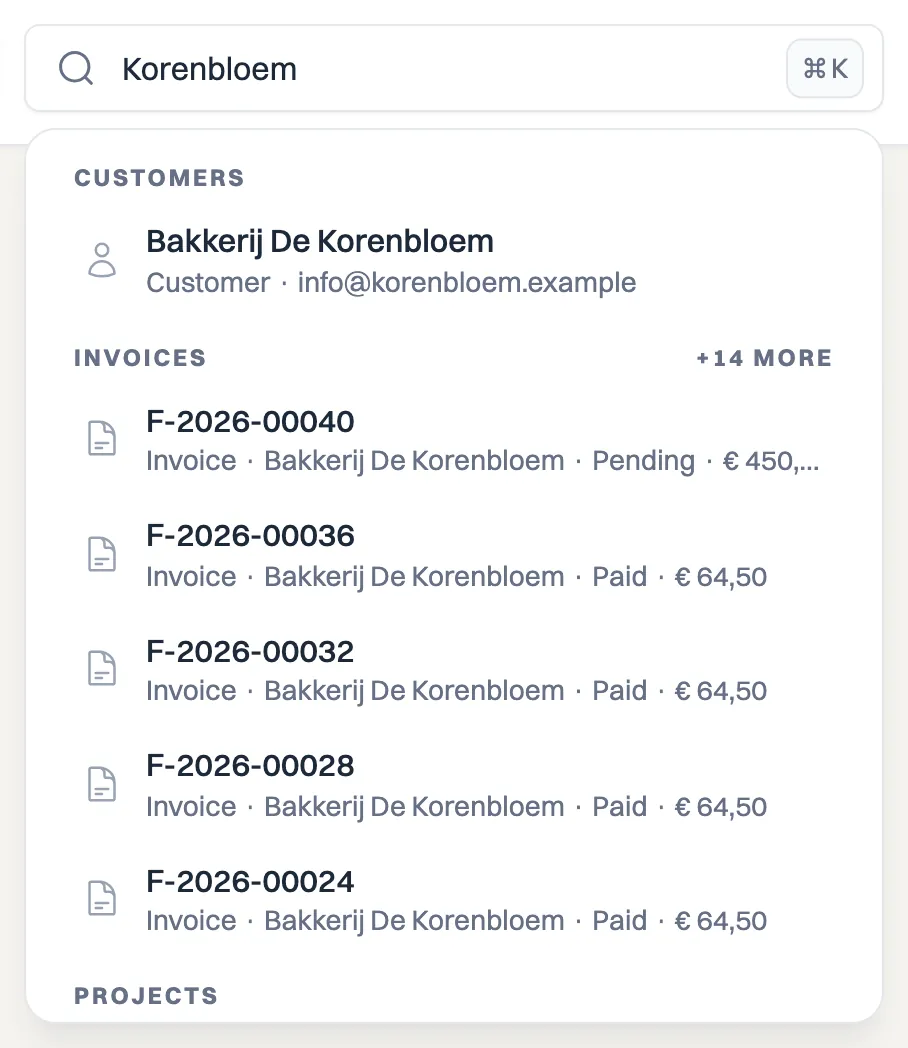
At the top of the screen there is a search field that finds things from anywhere in Milo: a customer, an invoice, a quote, a project, a catalog item, a time entry or a customer group. You type, and results appear right below the field, grouped by kind. One click takes you to the record itself.
Opening the search field
Click the search field in the top bar, or use the shortcut Cmd + K (Ctrl + K on Windows). Milo starts searching from two characters; type one and it tells you it needs at least two. Milo waits briefly until you stop typing, so you do not have to press enter.
What Milo searches
Results are grouped by kind, in this order:
- Customers: name, contact person, email address, VAT number and Chamber of Commerce number.
- Customer groups: name and description.
- Invoices: invoice number, the remarks on the invoice and the customer's name.
- Quotes: quote number, the remarks on the quote and the customer's name.
- Projects: project name, the default description and the customer's name.
- Catalog: name and description of the item.
- Time entries: description, project name, customer name and the name of whoever logged the hours.
- Users: first name, last name and email address. You only see this group if you are an administrator.
Each result shows a title with a context line underneath, for instance "Invoice · Jansen BV · Expired · € 450,00" or "Customer · [email protected]". An archived project carries an Archived label.
Opening a result
Click a result to open it. The keyboard works too: the up and down arrows move through the list, Enter opens the highlighted result and Escape closes the panel. Press Enter straight away without highlighting anything and the top result opens.
Catalog items have no detail page of their own, so those take you to the catalog overview.
How results are ordered
Milo puts the best match on top. An exact match comes first, then something starting with your search term, then something containing it anywhere. A hit in the title weighs more than a hit in a description, and more recent records sit slightly higher than old ones.
You see at most five results per group. If there are more, the group name is followed by something like +12 more. That is a count, not a button: make your search term more specific to reach those other matches. With very general terms an old but exact match can therefore stay out of view; search on the document or customer number in that case.
Searching within an overview
The search field in the top bar searches all of Milo. Every overview additionally has its own search field above the list, which filters only that list: on the invoices page you search within your invoices, on the customers page within your customers.
There too you do not have to press enter; the list filters along as you type. When the field holds something, a cross appears on the right that clears it in one click and brings back the full list. That same cross sits on an overview's other filter fields.
For customers and projects you do not have to type the name exactly. Milo ignores punctuation, hyphens and spaces and also listens to how a name sounds, so "Voorbeeldklant 25" finds "Voorbeeld-Klant '25" and "bakkerzonen" still turns up "Bakker en Zonen". That helps most when you give the name to the assistant, because you rarely spell it there exactly as it sits in Milo.
What you will not find
- Credit notes and recurring invoices are not in the search yet. You find those through their own overviews.
- Internal notes on an invoice or quote are deliberately not searched. The remarks your customer also sees are.
- The contents of PDFs and attachments are not searched, only the data in Milo itself.
What you do and do not get to see
You only see results from your own administration. If you run several companies in one account, Milo searches all of them at once, so also outside the company you are currently working in. You never see other Milo users' data.
If nothing shows up
If you see No results, try a shorter or different term, for instance just the surname or just the number without its prefix. If something goes wrong, Milo says so with a Try again button; your search term stays where it is.
Still stuck? Ask Milo via the chat in the bottom right, or email [email protected].