On almost every page in Milo there is a collapsible block at the top explaining that exact page. So you do not have to search the knowledge base first to know what you are looking at.
Where to find it
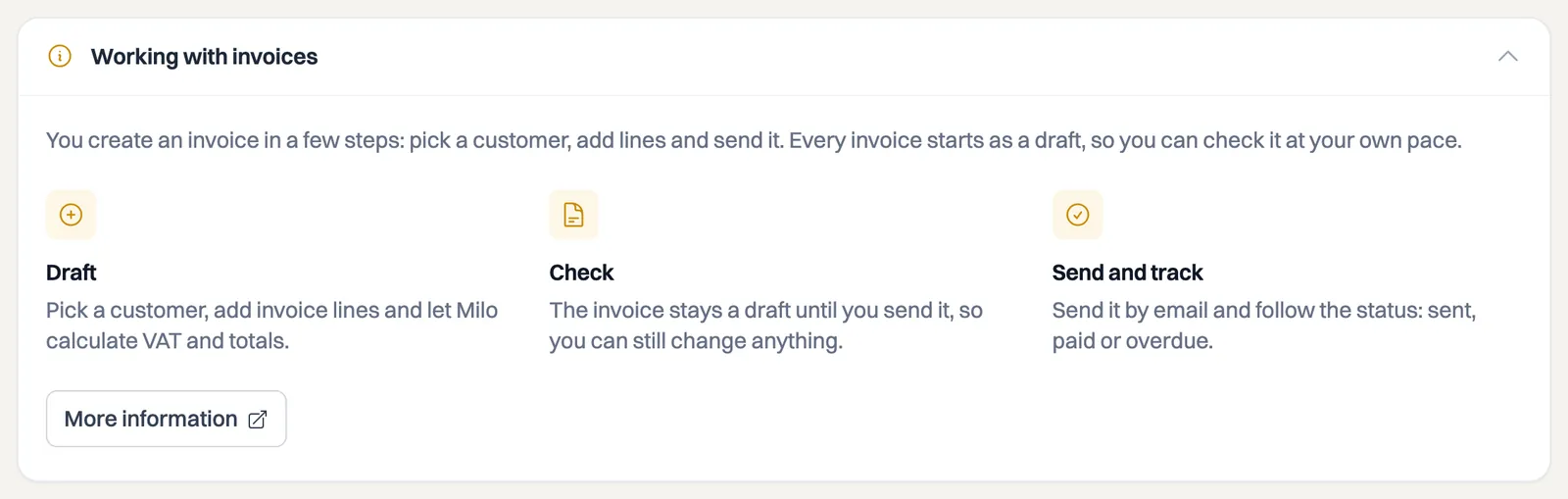
The block sits above the page content, with a title such as Working with invoices and an arrow on the right. Click it and you see:
- one sentence about what the page is for;
- three or four short steps, each with its own icon, describing the order of the work;
- the link More information to the full article in the knowledge base.
Click again and the block collapses.
Milo remembers your choice
If you collapse the block it stays collapsed when you come back to that page later. That applies per page: you can keep the explanation on Projects open and dismiss the one on Invoices.
If a list is still empty, for example because you have not created a single project yet, the block is open straight away. That is exactly the moment the explanation is useful. Once the list does contain something, it does not collapse by itself while you are reading.
More information without leaving the page
If you click More information, the knowledge base article opens in the Milo chat panel, next to your work. You stay on the page you were working on and do not have to find your way back. If the chat is unavailable, the same article simply opens in the public knowledge base.
The explanation in Milo web is deliberately short. The knowledge base article is the full version, with all the exceptions and settings.
Which pages have it
Among others your dashboard, customers, customer groups, invoices, quotes, recurring invoices, the catalog, projects, time tracking and reports, and the settings for your company, house style, users, your subscription and your profile.
Still stuck? Ask Milo via the chat in the bottom right, or email [email protected].