Customers are the basis for your invoices and quotes in Milo. You find them under Customers in the menu. There you search customers, create new ones and update existing ones. For each customer you record address and contact details and set a payment term. With customer groups you organise customers and filter overviews.
The customer overview
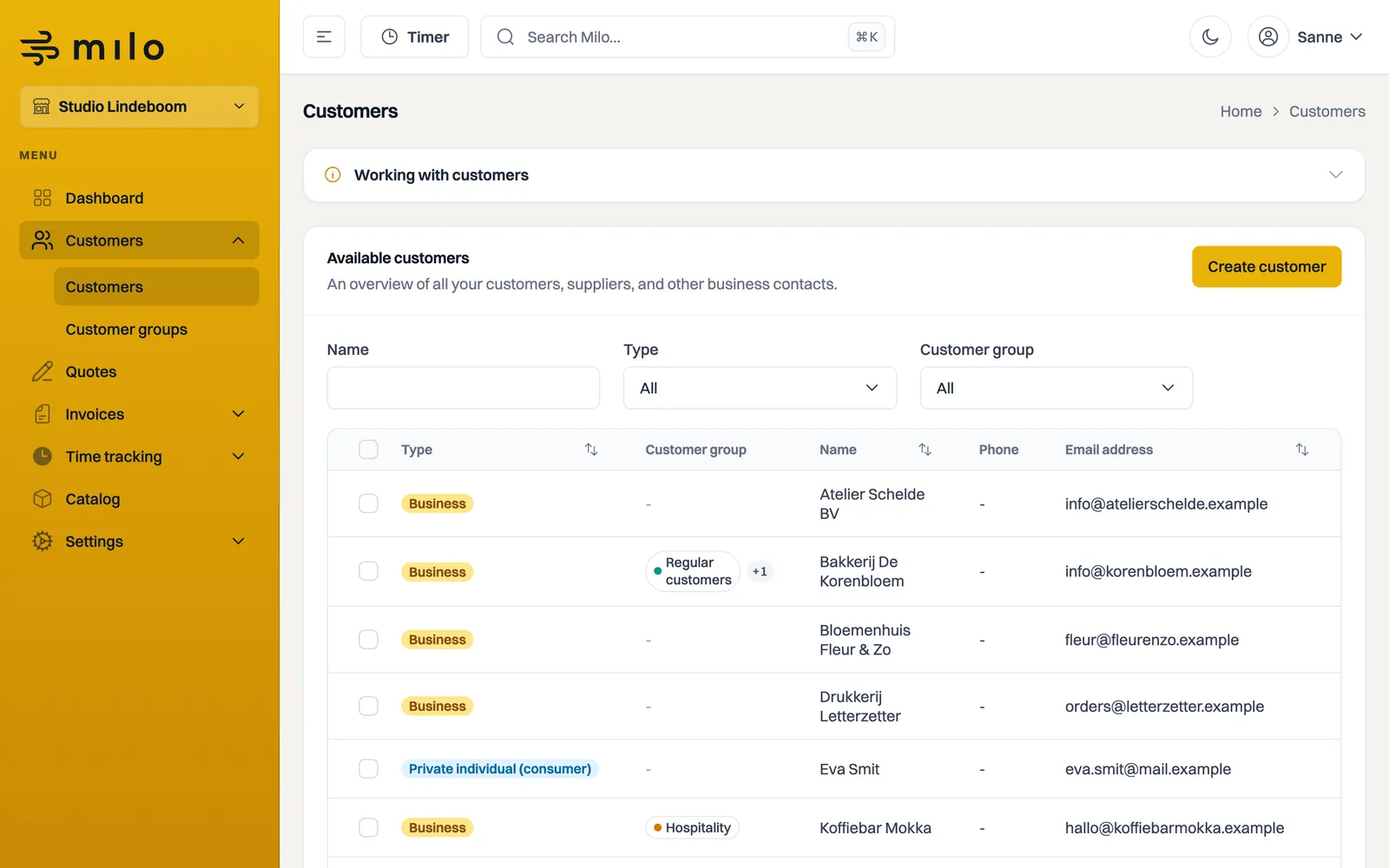
Under Customers > Customers you see all your customers in a table with type, customer group, name, phone and email address. Above the table you filter by Name, Type and Customer group, then click Filter. Behind each row are buttons to edit or delete the customer.
Creating a customer
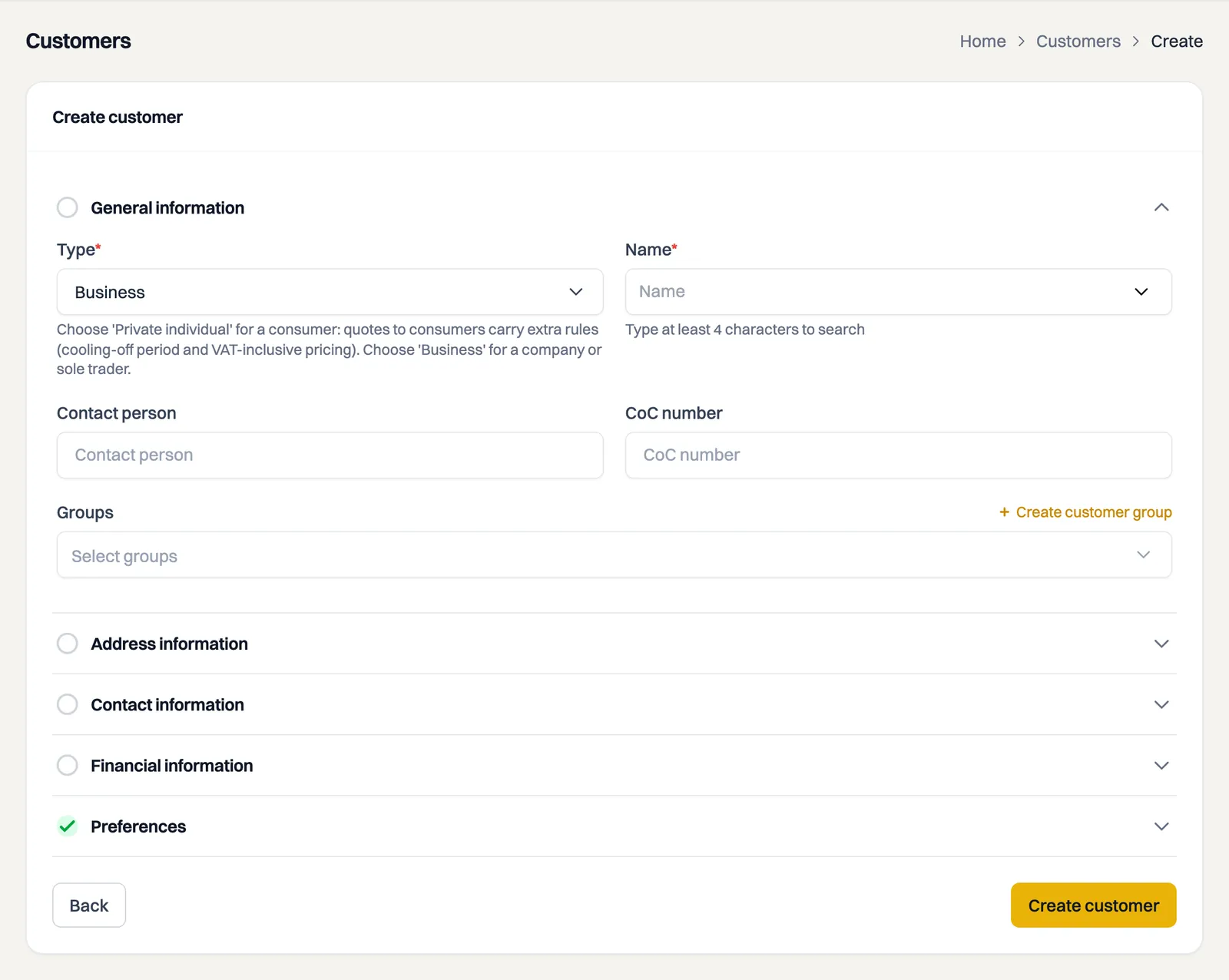
Click Create customer at the top right and fill in the details. The form is divided into five parts.
- General information: under Type, choose between Business and Private individual (consumer). That choice does more than sort your list: on a quote to a private individual the consumer rules apply, meaning amounts including VAT and a 14-day cooling-off period. A freelancer or sole trader is not a consumer and belongs under Business. See the article on quotes to private customers. Then enter the Name. For a business customer Milo searches the Chamber of Commerce (KvK) register as you type; select your company from the list and Milo automatically fills in the KvK number and known details. You can also add a Contact person and one or more Groups.
- Address details: enter the Street, House number, Postal code, City and Country.
- Contact details: enter a Phone number, the Email address (invoices are sent here) and optionally a Website.
- Financial details: optionally enter the IBAN and the VAT number. With Validate you check the VAT number against the European VIES register. Milo tells you whether the number is valid, invalid, or whether VIES was briefly unreachable; in that last case the number is not the problem and you can try again shortly.
- Preferences: set the Preferred language, the Invoice payment term (days) and the Quote validity term (days). Milo uses these terms later as the default on invoices and quotes for this customer.
Click Create customer at the bottom to save the customer.
If you filled in a VAT number, it appears under your customer's address on the invoice, quote or credit note, labelled VAT ID. For reverse-charged VAT and for supplies and services within the EU that is a legal requirement, so do fill it in for business customers in other EU countries. See the article on VAT on invoices.
Customer groups
Under Customers > Customer groups you create groups with their own name and colour, for example to organise customers by industry or region. You link a customer to a group via the Groups field in the customer form, or you create a group directly with Create customer group. In the customer overview you then filter by customer group. For more on creating groups and linking or unlinking customers in bulk, see the article on customer groups.
Editing or deleting a customer
Use the buttons behind a row in the customer overview to change a customer's details or delete the customer. When deleting, Milo first asks for confirmation.
Creating a customer while making an invoice or quote
You do not have to create a customer in advance. While you are drawing up an invoice or quote, click Create customer at the customer selection to add one right away.
Still stuck? Ask Milo via the chat in the bottom right, or email [email protected].