Running more than one business? One Milo account can hold several companies side by side. Each company has its own customers, invoices, quotes, projects, hours, numbering, branding and company details. You always work in one company at a time and switch between them in the menu.
How many companies are included
- Starter includes 2 companies, Professional includes 3.
- With an active paid Professional subscription you can add extra companies for EUR 12.50 per month per company.
- Your subscription applies to your whole account, not per company. The number of documents is unlimited on every plan, for all your companies.
Adding a company
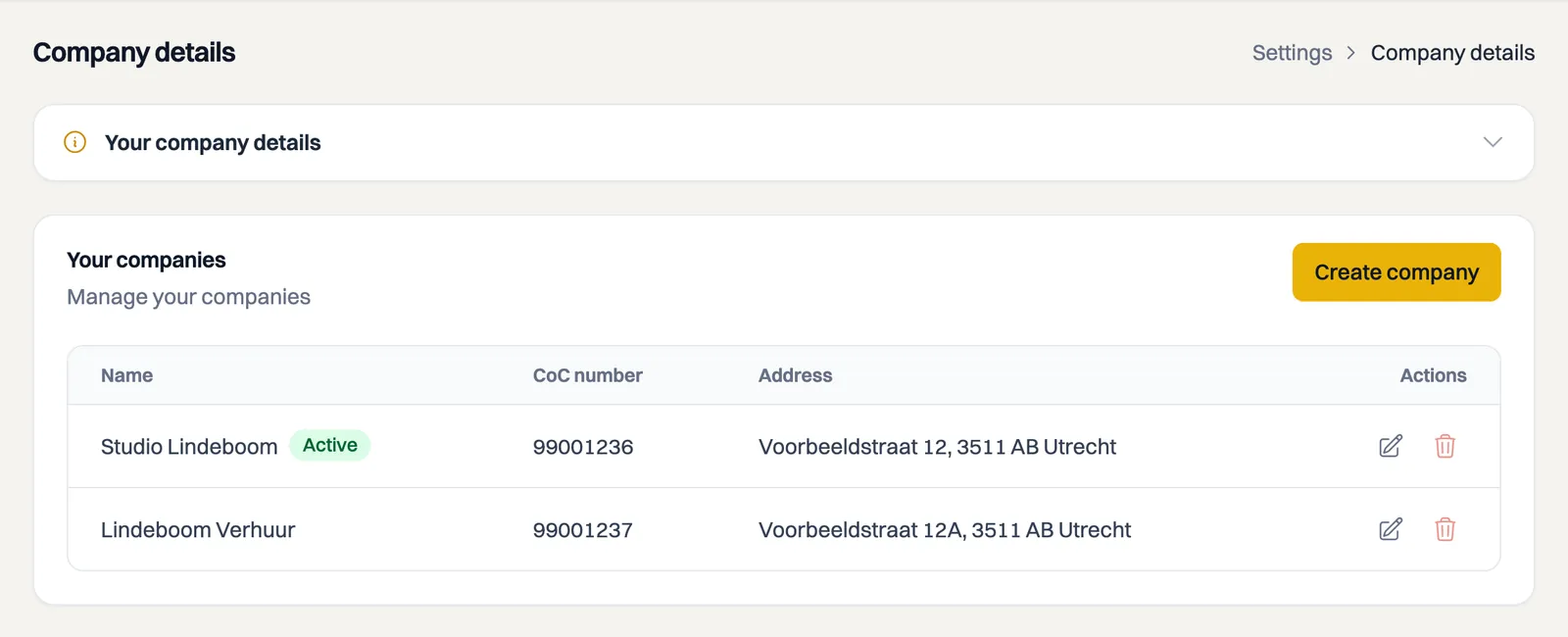
- Go to Settings > Company Details.
- If you currently have one company, that company opens straight away. At the top you see the Multiple companies notice with the Add company button. If you already have several, you see the Your companies list with the Create Company button in the top right.
- Fill in the details of the new company and save. You then return to your companies overview.
If you go beyond the number included in your plan, what happens depends on your subscription:
- On an active paid Professional subscription, the Add another company window appears first, showing the cost per month and the amount charged now, pro-rated until your next billing date. Milo only creates the company once you click Add and pay.
- During your trial and on Starter you cannot add extras. You will see Limit reached with a pointer to the plans.
Switching between companies
As soon as you have more than one company, the company switcher appears in the sidebar menu, showing the name of your current company.
- Click the company switcher.
- Under Switch company, choose the company you want to work in.
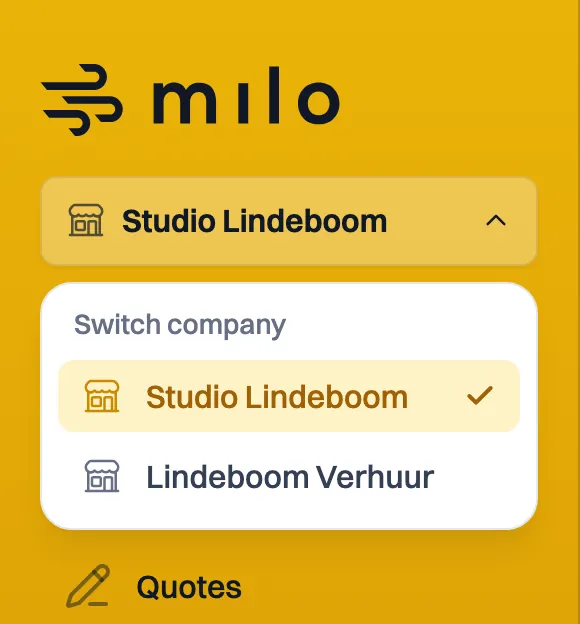
Milo confirms with the message Switched to and the company name, then reloads with that company's data. If you are on a detail page such as an invoice or a customer, you return to the matching overview. Milo remembers your choice, so next time you start in the same company.
Switching company here changes nothing for the Milo bot on WhatsApp. That link is bound to one administration: the company that was active when you confirmed it. To use the bot in a different company, send /ontkoppel, make the company you want active here, and link again. See the article on Milo on WhatsApp.
Deleting a company
In the Your companies list, each company has a delete button. Deleting is only possible when every condition is met:
- you are the owner of the account;
- the company is not the one your subscription is billed to;
- the company has no invoices, quotes, customers, recurring invoices, projects or time entries attached.
If a company does not meet those conditions, the delete button is disabled.
Still stuck? Ask Milo via the chat in the bottom right, or email [email protected].