If you don't work alone, you can give a colleague their own sign-in details in Milo. You then work in the same administration, on the same subscription. Your colleague gets their own password and sees the same customers, invoices and quotes as you.
You'll find this under Settings > Users.
Who has access
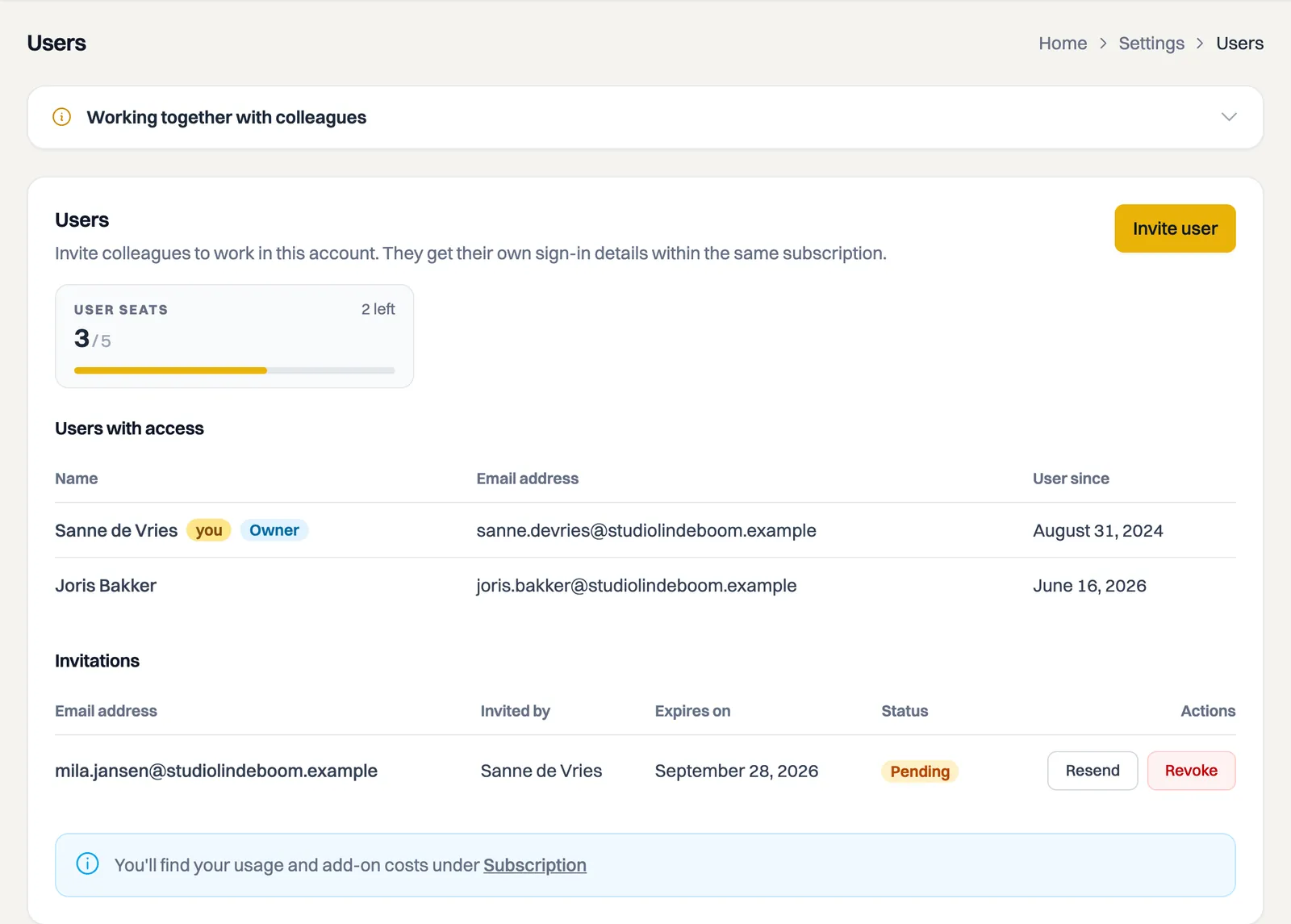
At the top of the page sits Users with access: everyone who can actually sign in to the account, with their name and the date under User since. Your own row is marked you, and the account owner carries the label Owner. A user whose access has been switched off shows as Deactivated and keeps their user seat occupied.
Below that sits Invitations, holding the invitations that have not been accepted yet. As soon as your colleague accepts, that row moves up into the list above.
Inviting someone
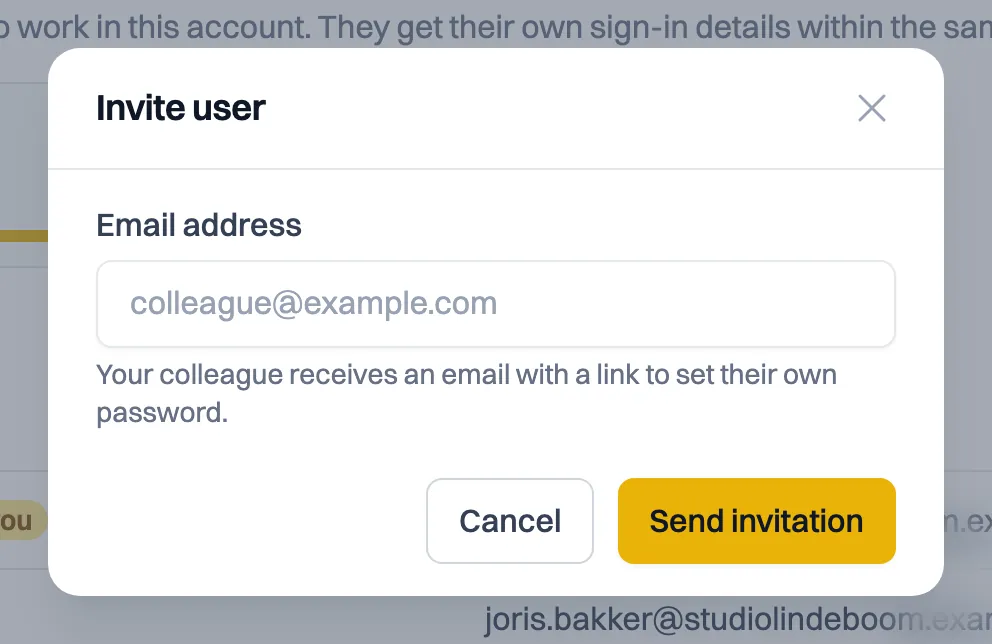
Click Invite user and fill in your colleague's email address. Milo sends an email with a link they use to set their own password. As long as that link hasn't been used, the invitation shows in the list as Pending.
Your colleague pays nothing and doesn't start their own trial: their access belongs to your subscription.
Someone who already has a Milo account cannot be invited. That address already belongs to an account, and that access can't simply move to another administration.
How many users do you have?
Above the list you can see how many user seats are in use, for example "2 of 5 users in use". Note that a pending invitation already counts as an occupied seat. That stops you from inviting more people than you have room for and having them turned away when they accept.
How many seats you have depends on your plan. Starter has one user, Professional has five. On Professional, inviting someone beyond those five means Milo first asks you to confirm the extra cost before the invitation goes out. On Starter the limit is hard: there you need a larger plan.
Revoking an invitation, or letting it expire, frees the seat again.
The email didn't arrive
First ask your colleague to check their spam folder. If that doesn't help, click Resend on the invitation. Milo sends the email again, with a new link. The old link stops working.
You can't do this over and over: there are a few minutes between two sends, so your colleague's mailbox doesn't fill up.
Inviting the same address a second time isn't possible while the invitation is still open. Use Resend for that.
Revoking an invitation
Invited someone by accident, or no longer need to? Click Revoke. The link in the email stops working and the user seat is freed.
What does your colleague see?
Your colleague opens the link from the email and sees who sent the invitation. There they fill in a first name, last name and password. The email address is fixed: it's the address you sent the invitation to. After that your colleague can sign in right away, without confirming an email address first.
An invitation is valid for 14 days. After that the link stops working and you invite them again.
Still stuck? Ask Milo via the chat in the bottom right, or email [email protected].