A project links your work to a customer and an hourly rate, so you can log hours against it and invoice them in one go later. Invoiced time entries are automatically locked, so you never bill them twice. You find projects under Time tracking > Projects in the menu.
Creating a project
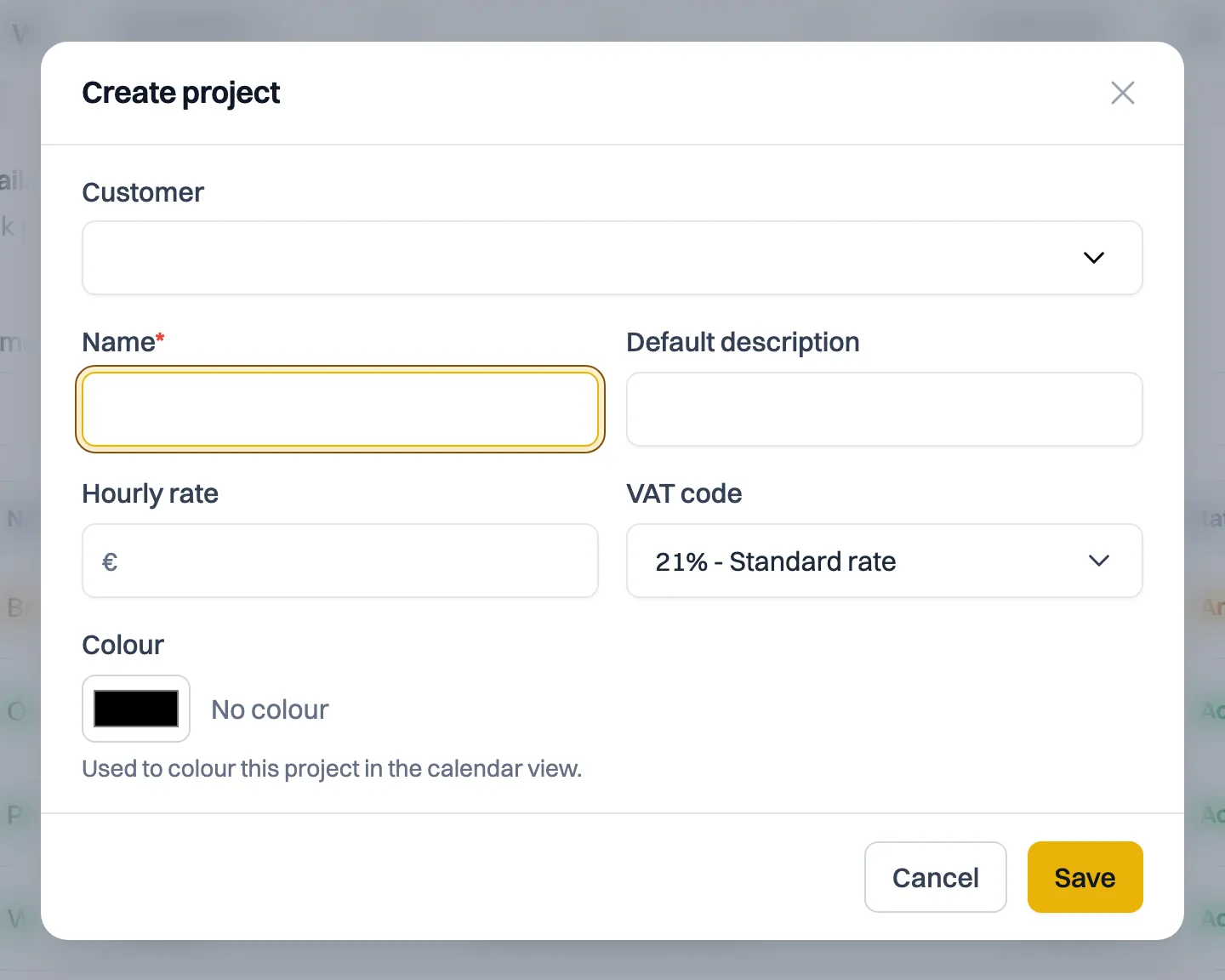
- Go to Time tracking > Projects and click Create project.
- Give the project a Name.
- Optionally choose a Customer. A project doesn't need a customer, but linking one makes invoicing the hours easier.
- Enter an Hourly rate and choose the VAT code, for example 21% - Standard rate. If you would rather not record a fixed code, choose No default code. The hourly rate and the VAT code are used when you turn hours into an invoice.
- Optionally set a Default description. It is suggested when you log hours on this project.
- Click Save.
A new project gets the status Active.
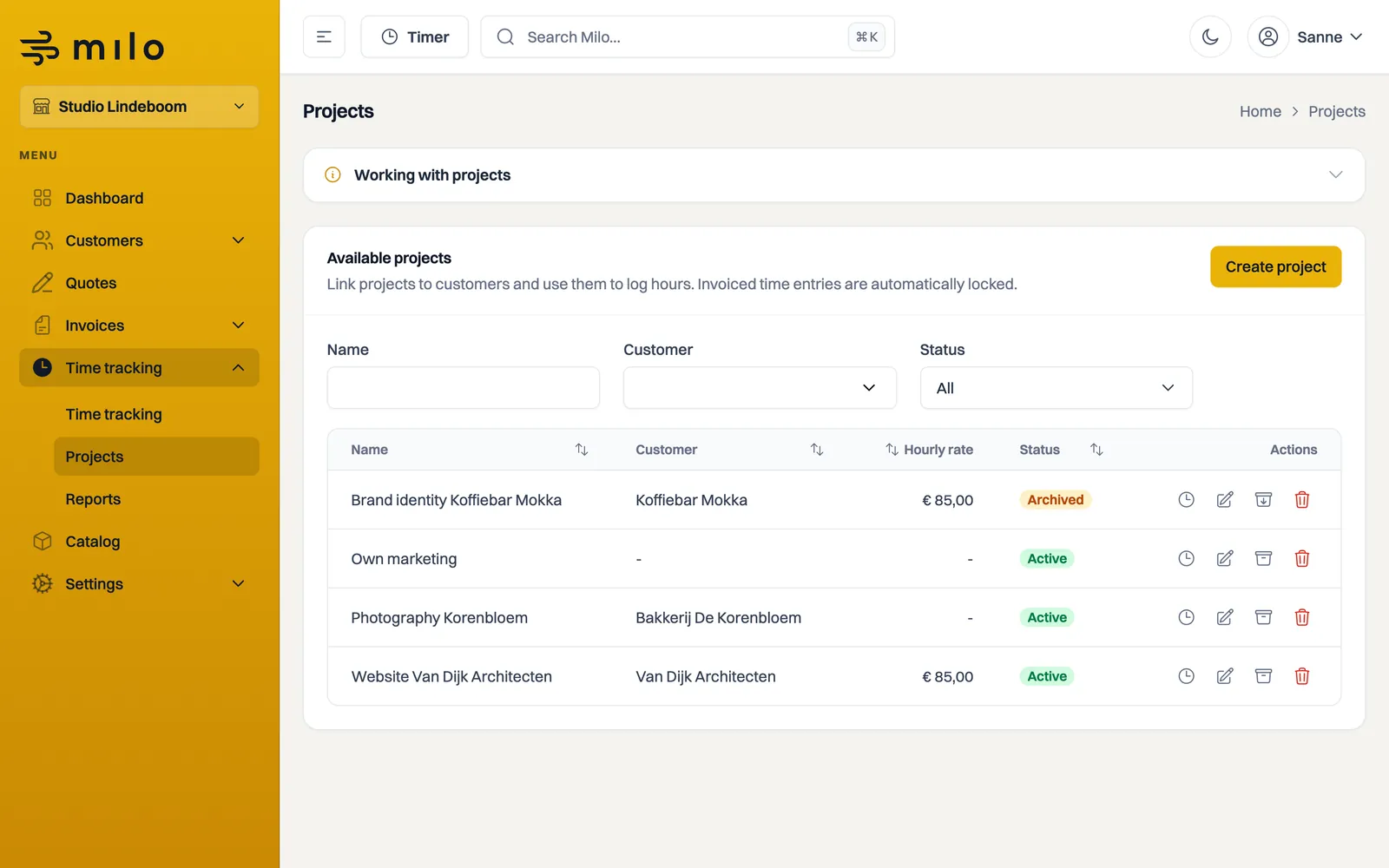
The project overview
Under Time tracking > Projects you see all your projects with their customer, hourly rate and status. Use the filter at the top to show only Active or Archived projects. Behind each row you find the buttons to edit, archive or delete the project, and to view the logged hours.
Viewing and invoicing hours
Click View hours on a project to see the logged time. You log hours under Time tracking > Time tracking, where you pick the project the hours belong to. Billable hours can then be turned into an invoice in a few clicks. See the time tracking article for the full steps.
Archiving or reactivating a project
When a project is finished, archive it with Archive behind the row. An archived project disappears from your active list, but the logged hours and history are kept. To continue with it later, use Activate to set the project back to Active.
Editing or deleting a project
Use Edit to change the name, customer, hourly rate, VAT code or default description. Use Delete to remove a project from the available projects. Existing time entries are not erased, but the project cannot be restored through the interface. Use Archive to keep the project and its hours visible and reactivate it later. If you only want to set a project aside temporarily, use Archive instead.
Still stuck? Ask Milo via the chat at the bottom right, or email [email protected].