With time tracking you log the hours you work, link them to a project and invoice billable hours in a few clicks. You find it under Time tracking in the menu, with Projects and Time tracking below it.
Projects
A project links your hours to a customer and an hourly rate. Invoiced hours are locked automatically, so you do not accidentally invoice them twice.
- Go to Time tracking > Projects and click Create project.
- Optionally choose a Customer, give the project a Name and, if you like, a Default description.
- Enter an Hourly rate and choose the VAT code.
- Click Save.
A project gets the status Active. You can archive finished projects via the buttons behind the row. For more on managing projects (editing, archiving and reactivating), see the article on projects.
Logging hours
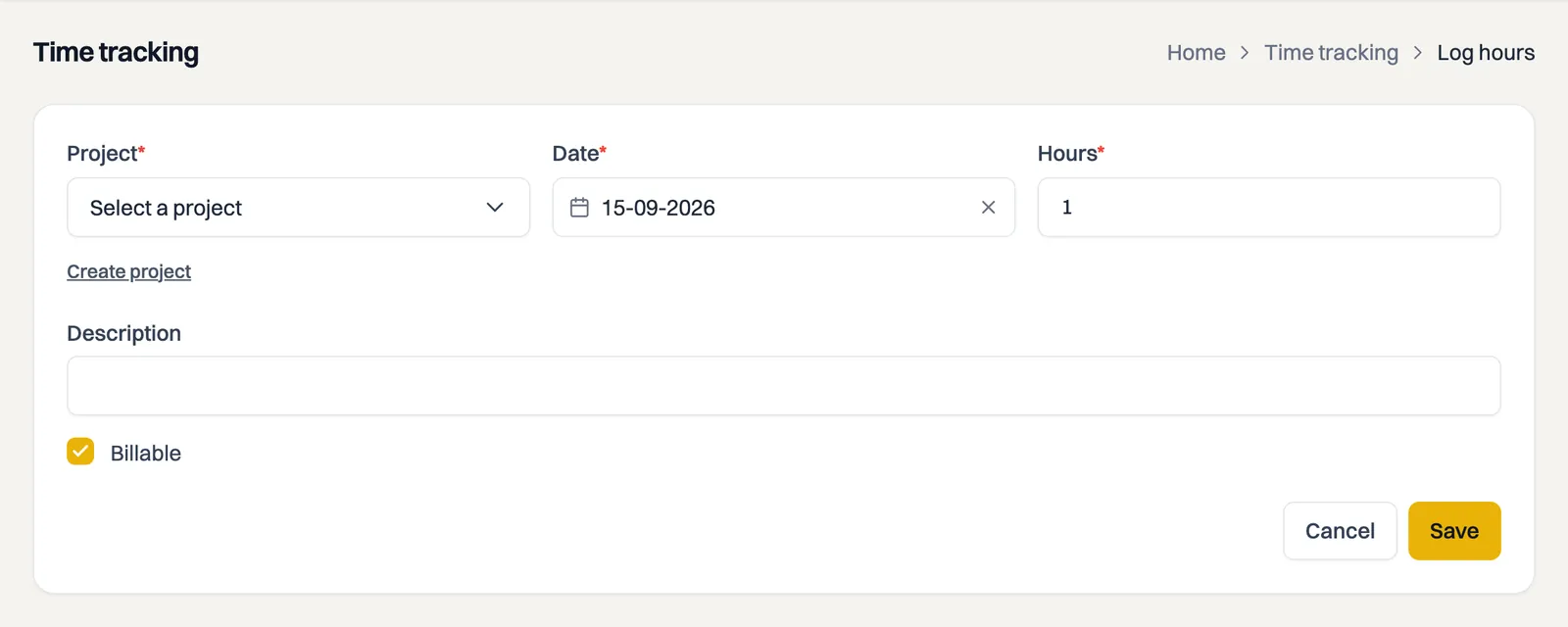
- Go to Time tracking > Time tracking and click Log hours.
- Choose the Project, the Date and the number of Hours.
- Enter a Description and turn Billable on or off. You can invoice billable hours later, non-billable hours not.
- Click Save.
If you want to log time while you work, use the Timer button at the top of the screen. If you would rather not work in Milo web, you do the same from your menu bar or system tray with Milo Timer, the desktop app for Mac and Windows; see the article on Milo Timer.
Logged hours and filtering
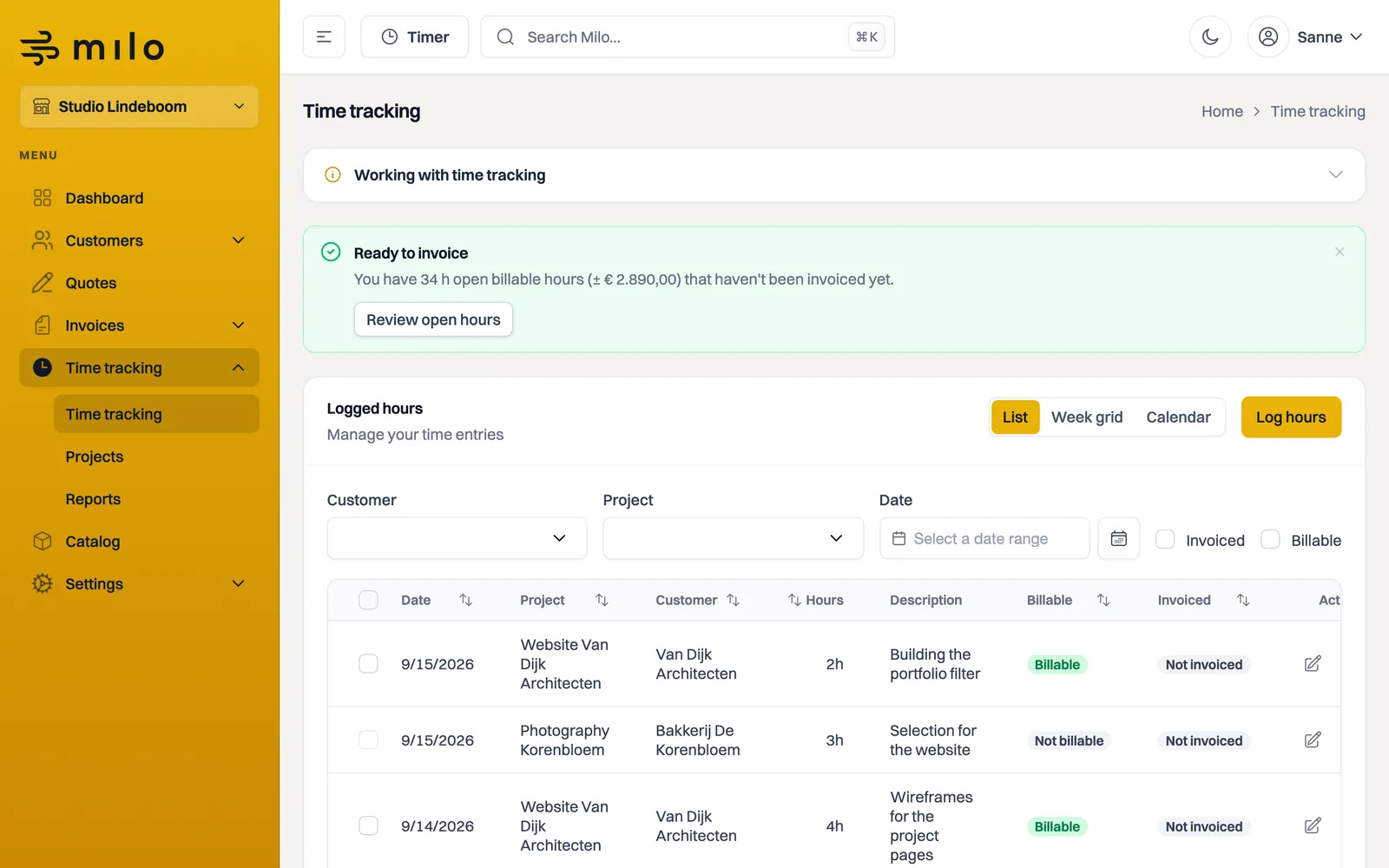
In the overview you see, per row, the date, the project, the customer, the number of hours, whether the hours are billable and whether they have already been invoiced. You filter by customer, project, period and by billable or invoiced.
List, week grid or calendar
Above the time overview you switch between three views of the same hours:
- List: the list above, one row per entry, with all the filters.
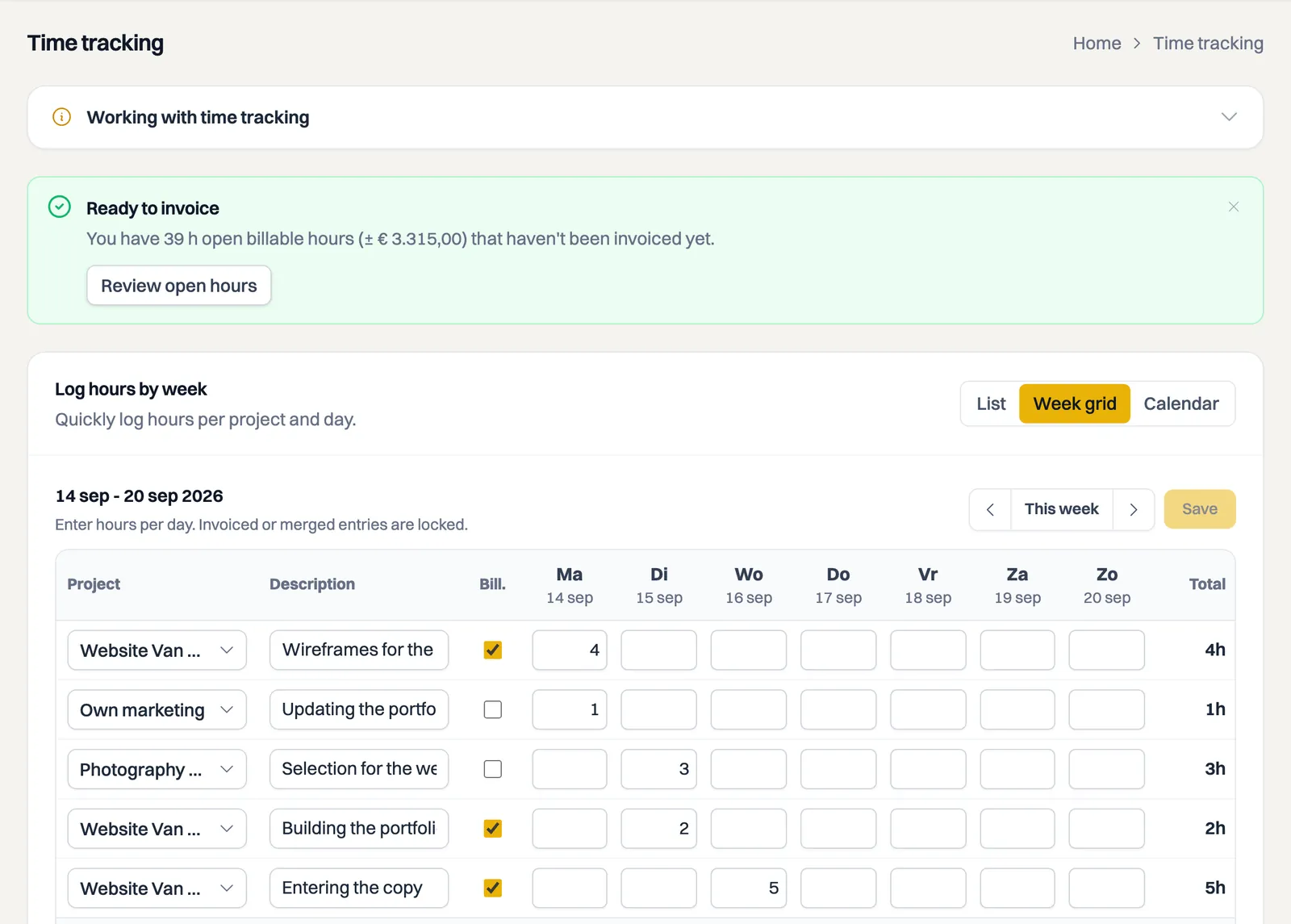
- Week grid: a grid with your projects below each other and the days of the week next to each other. You type the hours per day and save the whole week at once with Save week. The Day total sits at the bottom, a Total per row on the right, and the Bill. column shows whether the hours are billable. If one cell holds several entries it is locked, and you edit it from the list view. Invoiced hours are locked as well.
- Calendar: your hours as blocks in a weekly or daily agenda. Drag across the calendar to create a block, or use the plus button. Existing blocks can be dragged to another day or time. The block leads with the description, with the project and customer beneath it and the hours on the right; an entry without a description shows the project name instead. At the top you see Visible total, and Copy previous week brings last week's hours over. Anything you had already logged this week stays put.
If your account is read-only you can still look at all three views, but you cannot log anything.
Invoicing billable hours
In the overview, select the billable hours that have not been invoiced yet and convert them into an invoice. Milo then creates an invoice for the matching customer with the selected hours as lines. After that those hours are marked Invoiced and are locked.
The tick box in the header only selects the rows on the page you are on. To invoice a whole month at once, set Per page at the bottom of the list to 50 or 100 and then select everything.
Smart reminders
Above the time entry list, Milo helps you at two moments:
- Time to catch up? — if your last logged hours are three or more business days ago (or you have not logged anything in the past two weeks), Milo suggests catching up. Log hours opens the window for logging hours right away. If you dismiss the reminder, it stays away for the rest of the day.
- Ready to invoice — once you have eight or more open billable hours, you see how much is waiting and roughly what it is worth. Review open hours filters the list to exactly those hours. If you dismiss this reminder, it stays quiet for two weeks.
Reports
Want totals, charts and an export of your hours per period, customer or project? Look under Time tracking > Reports. You can read more in the articles about time tracking reports and the hours criterion.
Enter one and a half hours as 1.5 in Hours. Select billable, uninvoiced entries and click Create invoice. Follow the dialog to create a draft invoice; this does not send the invoice immediately.
Still stuck? Ask Milo via the chat in the bottom right, or email [email protected].