Your user profile holds your own details: your name, your email address and your language. It is also where you change your password and your security settings. This is separate from your company details, which appear on your invoices and quotes.
Opening your profile
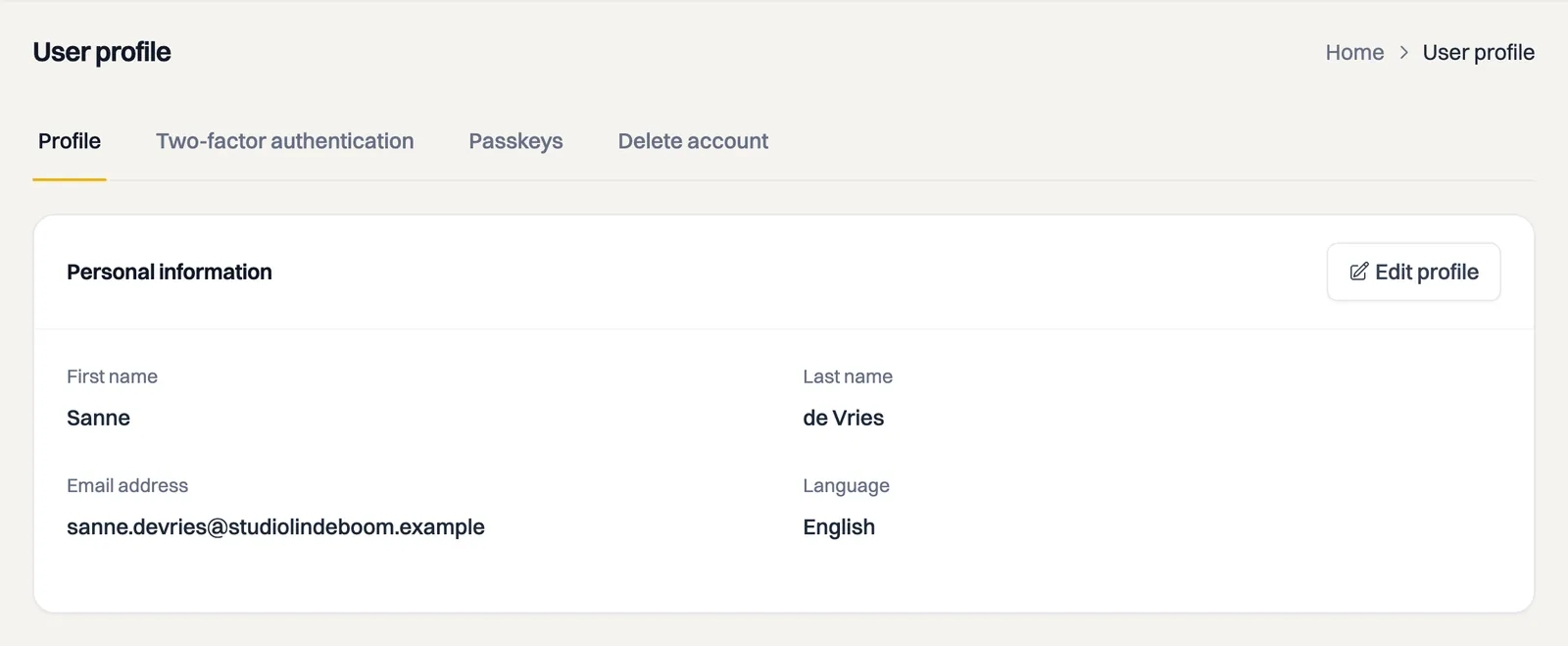
Click your user menu in the top bar on the right and choose Profile. The page has four tabs:
- Profile: your personal details.
- Two-factor authentication: an extra step when signing in.
- Passkeys: signing in without a password.
- Delete account: permanently removing your access and personal data.
Viewing and changing your details
On the Profile tab, the Personal information block shows your First name, Last name, Email address and Language.
- Click Edit profile.
- Change whatever you want to update. Under Language you choose between Nederlands and English.
- Enter your password under Current password. This is always required, even if you only change your name.
- Click Save changes. You will see the message Profile updated successfully.
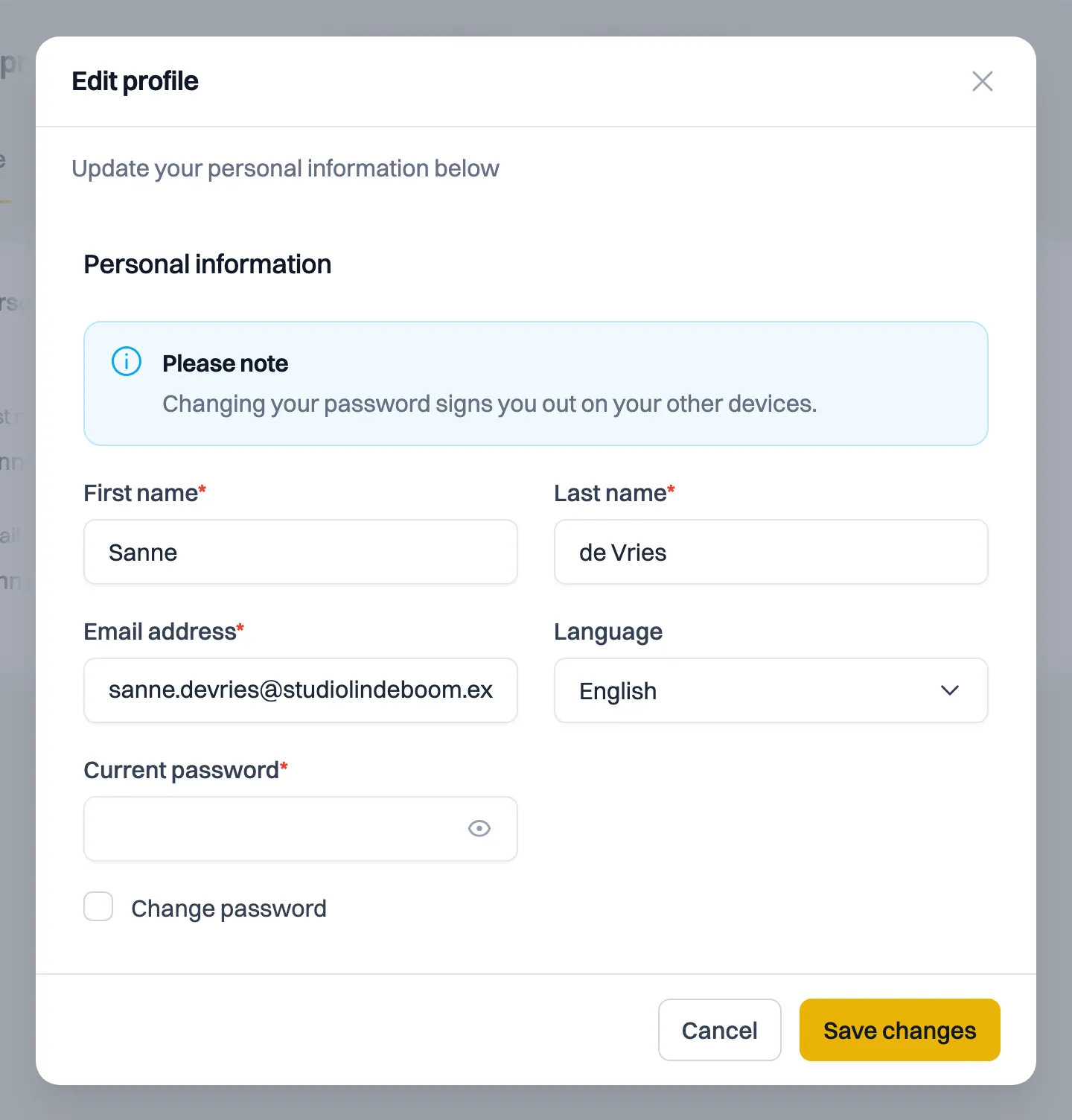
Your email address is also your sign-in name. An address that already belongs to another Milo account cannot be used; you get an error when saving. Your language choice sets the language you see Milo web in, and switches over as soon as you save. The mobile app and Milo Timer use this language too, unless you have picked a language there yourself.
Changing your password
Still know your current password and want to replace it? Do it here. If you have lost your password, use the reset link from the sign-in screen instead; that is covered in the article on forgetting your password.
- Click Edit profile.
- Enter your current password under Current password.
- Tick Change password. Two extra fields appear.
- Fill in New password and Confirm password. Your new password is at least 8 characters long and contains at least one uppercase letter, one lowercase letter, one digit and one special character.
- Click Save changes.
Above the form there is a Please note message: changing your password signs you out. You then sign in again with your new password, including on the other devices where you were signed in.
A new password also ends your linked messaging channels, such as the Milo bot on WhatsApp. If you use those, send /koppel in the chat again afterwards. That is deliberate: one password change makes you the only one with access to your administration again.
Setting up security
The Two-factor authentication and Passkeys tabs have their own articles:
- With two-factor authentication, Milo asks for a code from an authenticator app when you sign in.
- With a passkey you sign in using Face ID, Touch ID, your fingerprint, Windows Hello or your device PIN, without a password.
You can use both, or either one on its own.
Changing your profile without an internet connection
If you work offline, Milo keeps your profile change in the queue and sends it as soon as you are back online. You will see a message that your changes were saved offline. If you are online and something goes wrong, for example an email address that is already in use, you see that error right away.
Still stuck? Ask Milo via the chat in the bottom right, or email [email protected].