A passkey lets you sign in (log in) without a password. Instead of typing a password, you confirm with your own device's security: Face ID, Touch ID, your fingerprint, Windows Hello or your device PIN. It is faster and safer, because there is no password that can leak or be guessed.
Adding a passkey
You add a passkey while you are signed in:
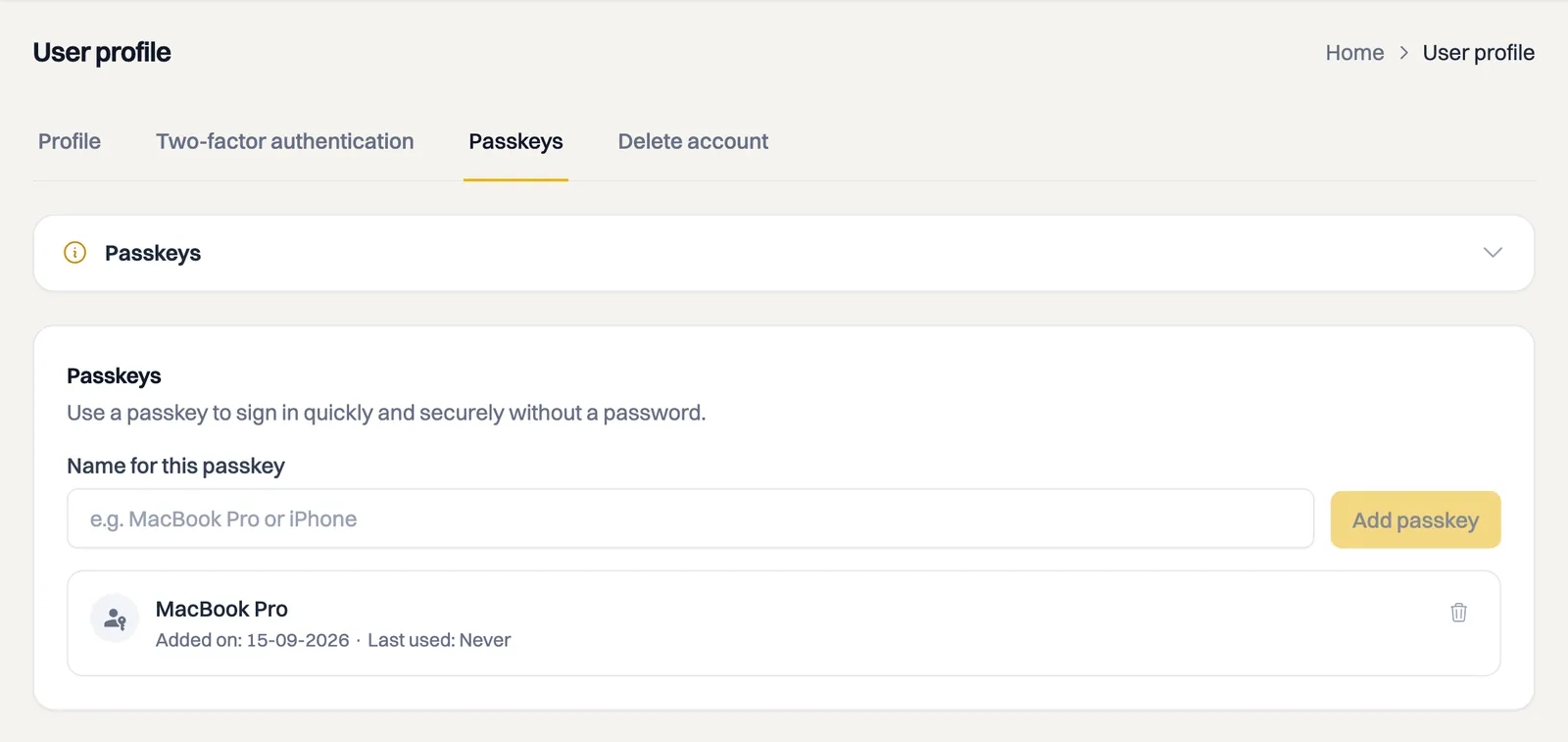
- Go to User profile and open the Passkeys tab.
- Give the passkey a recognisable name under Name for this passkey, for example "MacBook Pro" or "iPhone", so you know later which key belongs to which device.
- Click Add passkey.
- Your browser or device asks you to confirm with Face ID, Touch ID, your fingerprint, Windows Hello or your PIN.
The passkey then appears in the list, with the date you added it and when it was last used.
Signing in with your passkey
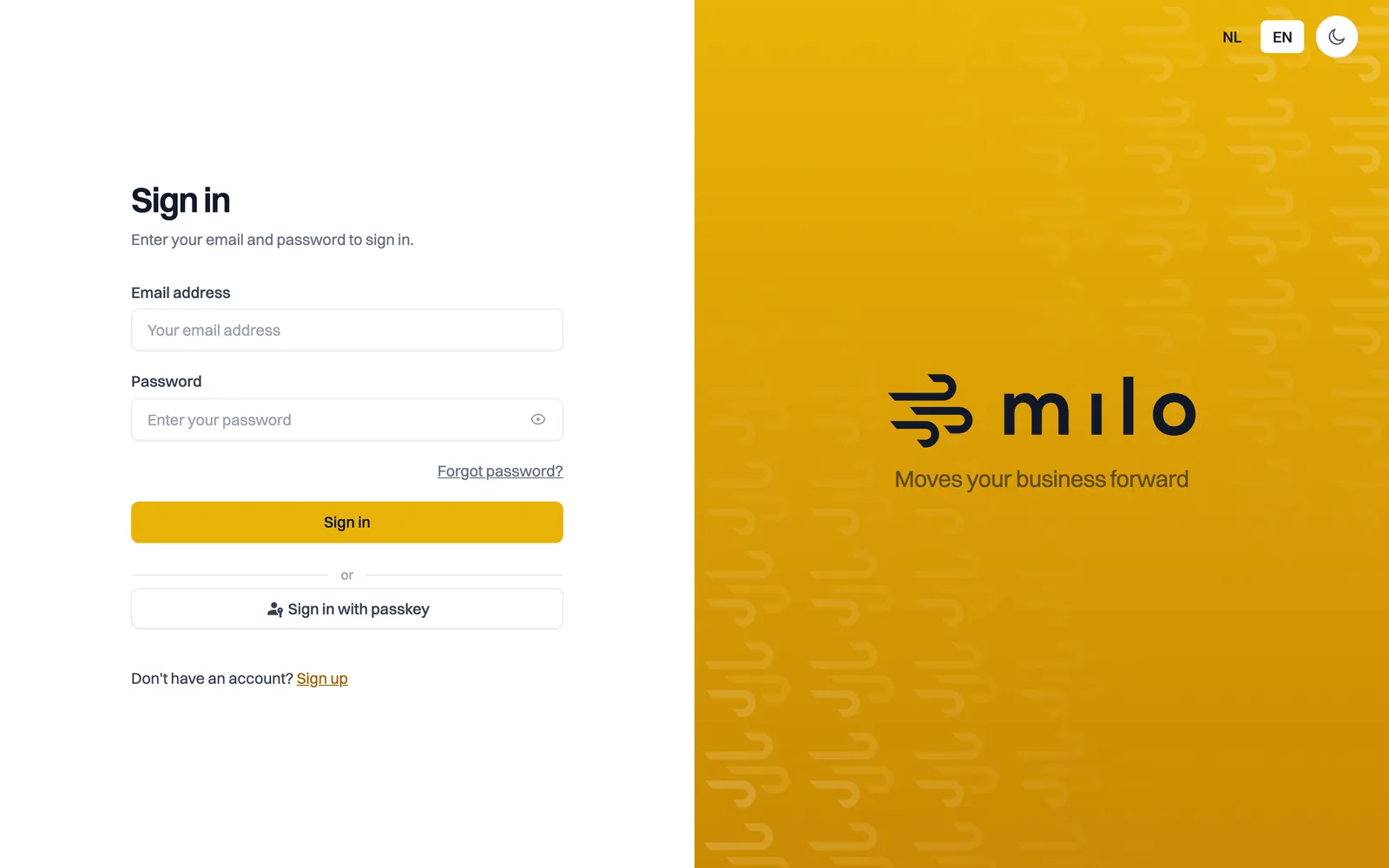
- On the sign-in screen, click Sign in with passkey (below the regular sign-in button).
- Confirm on your device with Face ID, Touch ID, your fingerprint, Windows Hello or your PIN.
You are signed in straight away, without entering your password.
Managing multiple devices and passkeys
- You can add multiple passkeys, for example one per device. Give each a clear name.
- Remove a passkey using the trash icon next to it in the list. You are asked to confirm first.
- Some passkeys sync automatically across your devices through iCloud Keychain or Google Password Manager, for example. If your key does not sync, simply add a new passkey on the new device.
- You always keep your regular password as a fallback. If signing in with a passkey does not work once, sign in with your email address and password.
Passkeys and two-factor authentication
A passkey replaces your password when signing in; it is not an extra step on top of your password. If you also have Two-factor authentication enabled, Milo will still ask for your second factor after the passkey. Passkeys and two-factor authentication are independent: you can use both, or either one on its own. How to set up two-factor authentication is covered in the article on two-factor authentication.
What do I need?
You need a modern browser that supports passkeys. Recent versions of Chrome, Firefox, Safari and Edge do. If your browser does not support them, you will see a message about it and can sign in with your email address and password.
In the mobile app too
A passkey belongs to Milo, not to your browser. The key you create here therefore works in the mobile app on your phone as well: the same Sign in with passkey button sits on the sign-in screen there. See the article on the mobile app.
Still stuck? Ask Milo via the chat in the bottom right, or email [email protected].