Cannot sign in (log in) because you no longer remember your password? Request a reset link from the sign-in screen and set a new password yourself. All you need is access to your email.
Requesting a reset link
- Go to the sign-in screen and click Forgot password? below the password field.
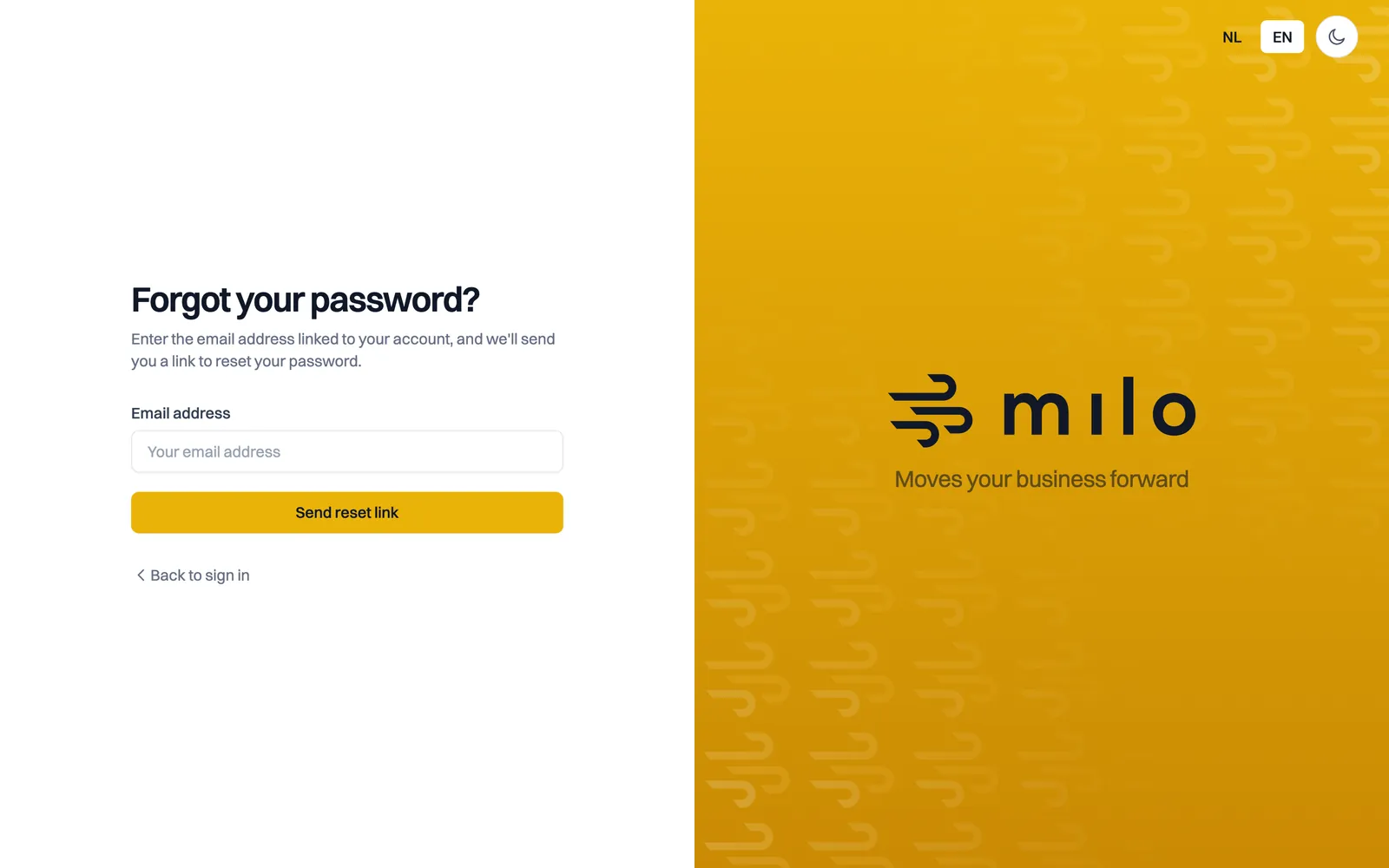
- On the Forgot Your Password? page, enter the email address linked to your account.
- Click Send reset link.
- You will see the confirmation Password reset link sent successfully! For security reasons Milo never reveals whether an email address is known, so this confirmation always appears.
- Open the email with the subject Reset your password. Check your junk or spam folder as well.
Setting a new password
- Click Reset password in the email. The link is valid for 60 minutes.
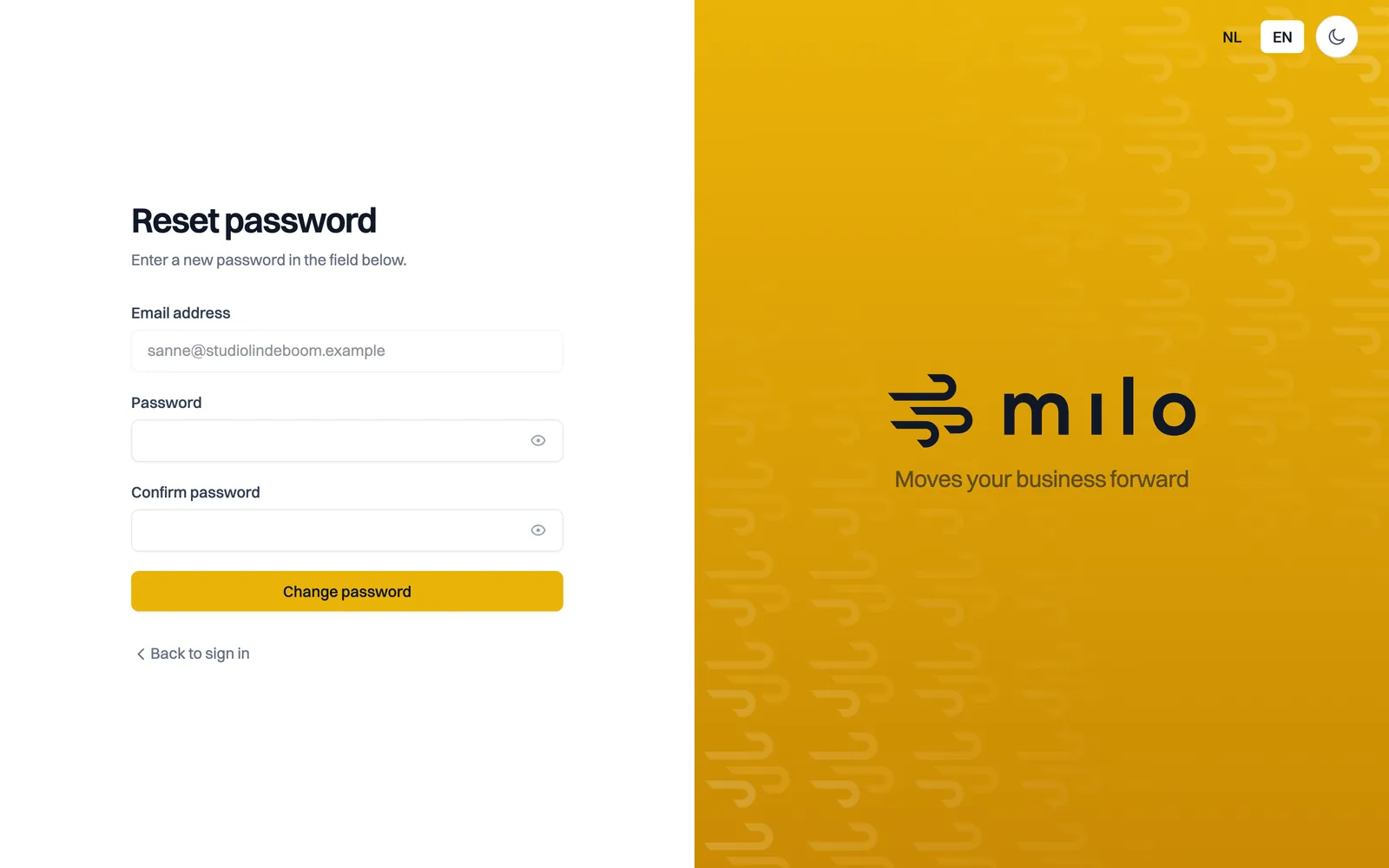
- You land on the Reset Password page. Your email address is already filled in and cannot be changed.
- Enter your new password under Password, at least 8 characters, and repeat it under Confirm password.
- Click Change password. You will see the message Password changed successfully!
- Use Back to sign in to return to the sign-in screen and sign in with your new password.
Changing your password does not sign you in automatically. You sign in again yourself.
If it does not work
- This password reset token is invalid. The link has expired or has already been used. Request a new reset link and always use the link from the most recent email.
- Please wait before retrying. You requested a link too often in a short period. Milo allows a maximum of five requests per minute. Wait a minute and try again.
- No email received. Check your spam folder and make sure you are using the email address you registered with. Still nothing? Email [email protected].
You are signed out everywhere
A reset link is how you take your account back, so anything set up with the old password falls away. As soon as you set a new password:
- you are signed out in every browser where you were signed in;
- the mobile app and Milo Timer ask you to sign in again;
- push notifications on your phone stop until you have signed in there again.
That is deliberate: someone who had access before the reset does not keep it. So after setting the new password, sign in again on the devices you use.
Two-factor authentication and passkeys
The rest of your security does stay in place. If two-factor authentication is enabled, Milo still asks for your verification code when you sign in. If you set up a passkey, you can keep signing in with it without a password. See the articles on two-factor authentication and signing in with a passkey for more.
Still stuck? Ask Milo via the chat in the bottom right, or email [email protected].