Connect your own Mollie account to Milo and your customer can pay an invoice online straight away, for example with iDEAL | Wero or a credit card. Without a connection everything still works: your customer simply transfers the amount using the details on your invoice.
Making the connection
- Go to Settings > General and open the Payment Methods tab.
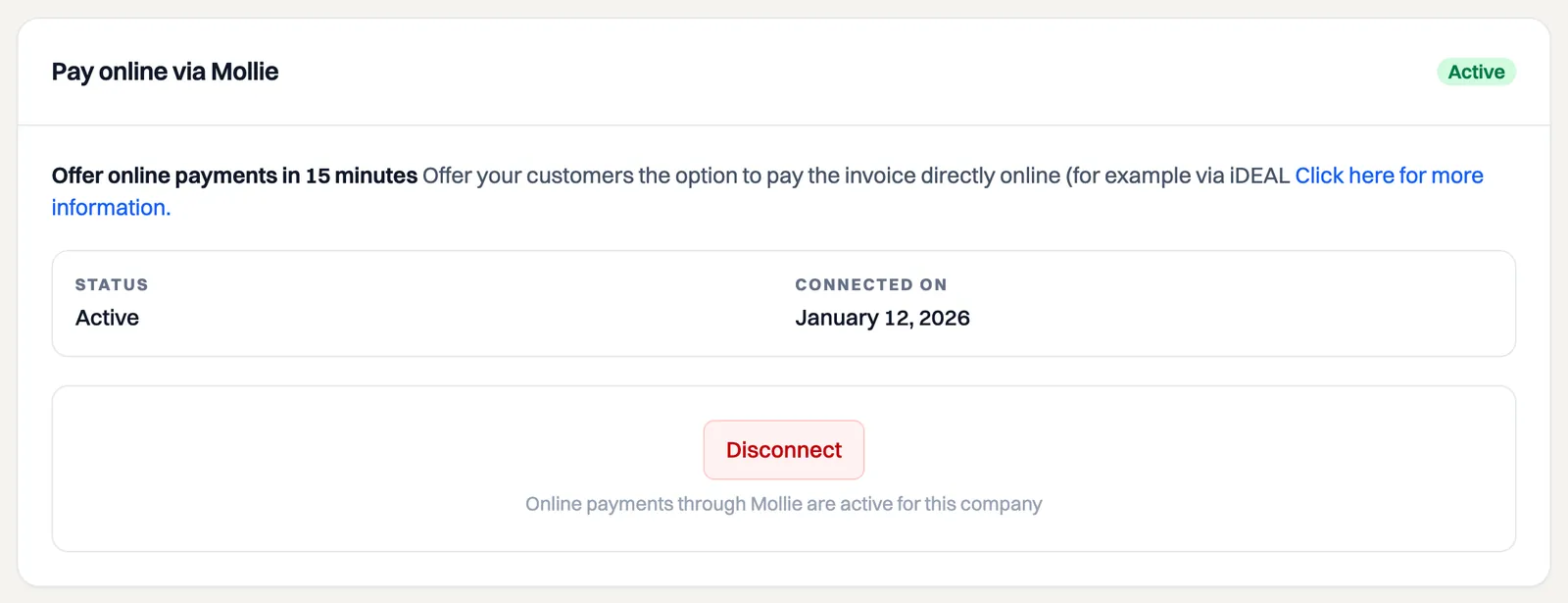
- Under Pay online via Mollie you see the current status: Not active, Onboarding incomplete or Active.
- Click the button to connect. You are redirected to Mollie, where you sign in or create an account and give Milo permission.
- You then return to Milo. If the connection succeeded you see the message Mollie has been connected and the status switches to Active, along with the date you connected.
You need your own Mollie account for this. Mollie charges transaction fees per successful transaction; that arrangement is between you and Mollie, not through Milo.
If the status says Onboarding incomplete, the connection was made but your Mollie account is not fully set up yet. Finish those steps at Mollie and the status becomes Active by itself.
The connection applies per company. If you run several administrations, you connect Mollie per administration. You need edit rights on the company; otherwise the button is disabled with a message that you lack permission.
What your customer sees
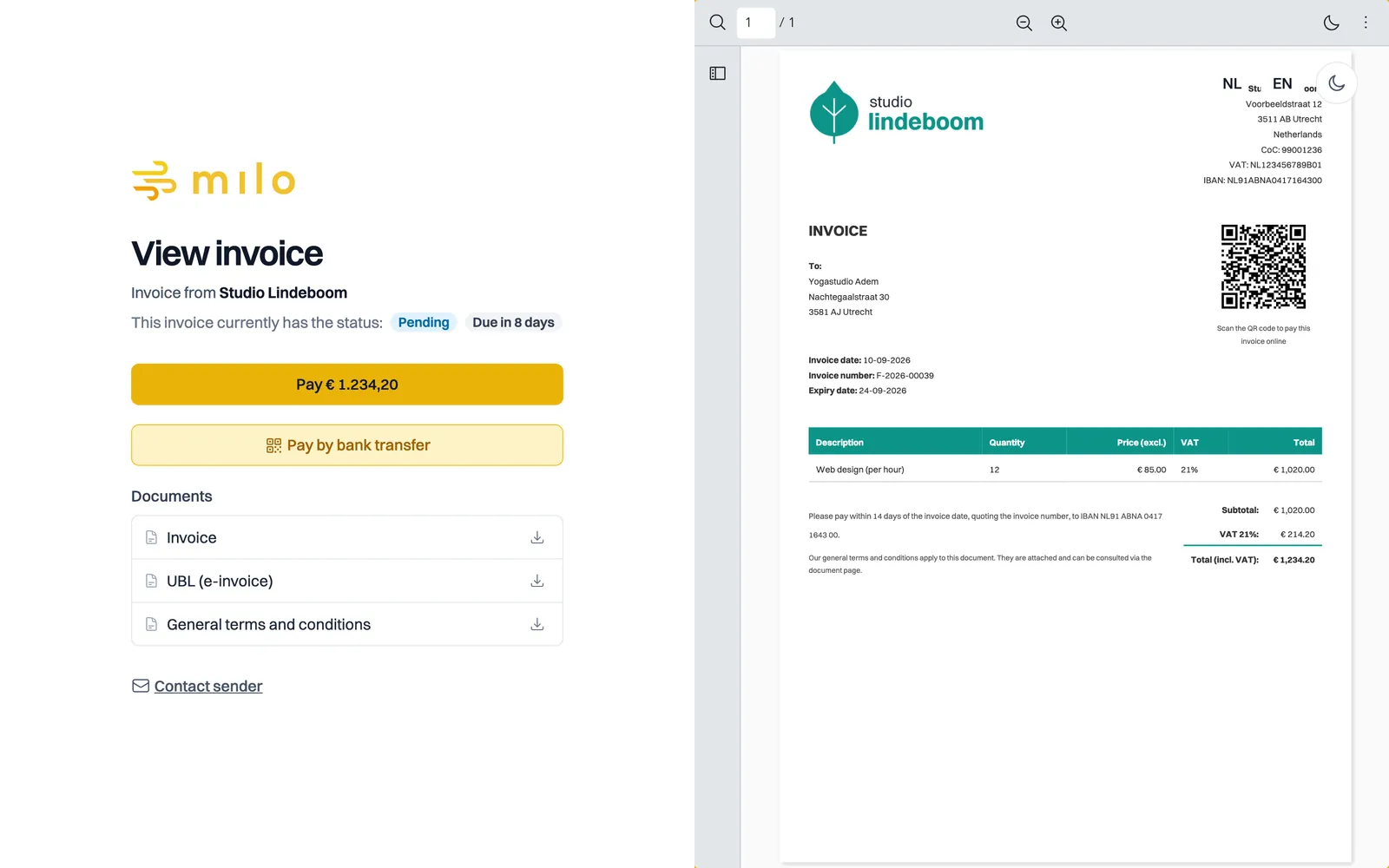
With an active connection, a Pay button showing the outstanding amount appears on your customer's secure invoice page. They click it and go to Mollie's payment environment. Afterwards they return to a status page showing Payment successful, Payment is being processed or Payment failed, with the option to try again.
In the invoice list an extra label appears below the status as soon as an online payment is under way: Payment started once your customer has opened the checkout, or Payment failed if it did not go through. The label disappears as soon as the invoice is Paid; an abandoned or expired checkout on an invoice you marked as paid yourself is not something you need to see any more. The details of the attempt are on the invoice itself.
The PDF of a payable invoice also carries a QR code. If your customer scans it with their phone, they land straight in the payment environment, without a PIN.
As soon as the payment comes in, Milo sets the invoice to Paid automatically. So you do not have to track that yourself.
When the pay button does not appear
The button only shows when there really is something to pay. It stays away when:
- your company has no active Mollie connection;
- the invoice is still a Draft or is already Paid;
- the outstanding amount is zero or negative, for example after a full credit note;
- it concerns a quote or a credit note. Those cannot be paid online.
If an invoice can no longer be paid online in the meantime, Milo says so with This invoice can no longer be paid online.
Without a connection
You can still get paid without Mollie. Put your IBAN in your company details and it appears on your invoice and in the UBL file, so your customer can transfer the amount. You then mark the invoice as Paid yourself; see the article on invoice statuses in Milo.
Disconnecting
You disconnect Mollie on the same tab. Milo asks for confirmation first with Disconnect Mollie? After that the pay button disappears from new and outstanding invoices.
Still stuck? Ask Milo via the chat in the bottom right, or email [email protected].