Milo keeps working when your internet connection briefly drops. Any changes you make are kept safe and sent automatically as soon as you are back online. This is especially handy when you create an invoice, quote or customer while on the go or on location with a patchy connection.
You don't have to switch anything on for this: it works automatically in the background.
How it works
- If you create or edit something while you have no connection, Milo saves it in your browser. It stays saved, even if you refresh the page.
- As soon as the connection returns, Milo sends the changes by itself, neatly and in order.
- If sending doesn't succeed straight away, Milo retries automatically.
- Milo makes sure the same change is never processed twice. So an invoice or customer won't accidentally be created twice, even if a send is retried.
The "Unsaved changes" panel
As soon as something is ready to be sent, a small panel titled Unsaved changes appears in the bottom-right of the screen. It shows how many changes are still waiting. Click it to expand the list.
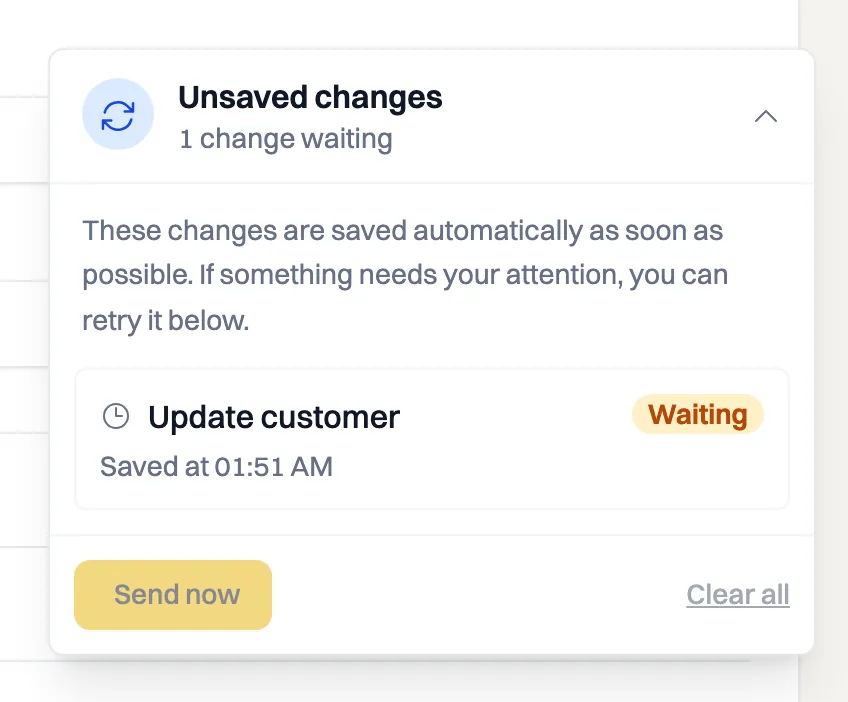
Each row shows what it is (for example Create invoice or Update customer), the time it was saved, and its status:
- Waiting: ready to be sent.
- Sending: being sent right now.
- Saved: sent successfully. This row disappears on its own.
- Failed: sending did not succeed.
- Changed elsewhere: the item was changed somewhere else in the meantime.
If a change shows Needs attention, Milo is asking you to take a quick look (see below).
At the bottom of the panel you'll find two buttons:
- Send now: try to send the waiting changes immediately.
- Clear all: remove the list. Note: changes that haven't been sent yet are permanently lost. That's why Milo asks for confirmation when something still needs your attention.
What works offline?
- Creating and editing invoices, quotes and customers works offline. These changes go into the queue and are sent automatically later.
- Files, such as a logo, cannot be saved offline. Upload those once you are back online.
- Editing your profile works offline: the change goes into the queue and is sent as soon as you are back online. If something goes wrong while you are online, for example an email address that is already in use, you see that error right away instead of in the queue.
- Settings, such as numbering, notifications and payment methods, need a live connection.
Resolving errors and conflicts
Failed Something went wrong while sending. Clicking Retry once you have a stable connection often does the trick. Sometimes there's an explanation, for example that an email address is already in use. In that case, adjust the details and try again.
Changed elsewhere This means the same item was changed somewhere else in the meantime, for example on another device or by a colleague, while your change was still waiting in the queue. The Overwrite button replaces that newer version with your change. Not sure? Check the current details first before overwriting, because the other change will be lost.
Good to know
- The queue belongs to the browser and device you're working on. Changes waiting on your laptop won't show up on your phone.
- Keep the screen open until everything has been sent. If you close Milo while changes are still waiting, they'll be sent the next time you open Milo and are online.
- If you have Milo open in several tabs, the queue stays in sync across all of them.
Tips
- Often work on location with a changing connection? Keep an eye on the Unsaved changes panel and wait until everything shows Saved before you close.
- Don't click Clear all while items still show Needs attention in the list; you'd lose work that hasn't been saved yet.
- Does a change keep failing to go through? Check the message on that row. It usually tells you what to do.
Still stuck? Ask Milo via the chat in the bottom right, or email [email protected].